image model by OpenAI
GPT Image 2
OpenAI's GPT Image 2 and GPT Image 1.5 in 1:1, 3:2 and 2:3 frames
What is GPT Image 2?
GPT Image 2 is an image generation model from OpenAI. Cinemagiq also runs the earlier GPT Image 1.5, which shares the same settings. Both sit on the Generation Studio's Image tab, take a prompt plus up to 4 reference images, and return up to four images per run. When you need more aspect ratios or the xhigh and max quality levels, OpenAI's newer GPT Image 2.5 is also in Cinemagiq.
Both models produce exactly three fixed sizes: 1:1 at 1024 x 1024, 3:2 at 1536 x 1024 and 2:3 at 1024 x 1536. Any other ratio is refused before the job starts. Quality comes in low, medium and high. Camera Angle Control is not available on OpenAI models, so put the camera in the prompt. When you attach references, describe in words what each one is for, since @image citations reach OpenAI models as plain text.
The 3:2 frame suits landscape concept art, location scouting stills and animated film frames, and 2:3 suits posters and standing character portraits. If the video model you plan to use works in 16:9, a 3:2 still may be cropped, so generate in GPT Image 2.5 or Nano Banana 2.1 when the exact widescreen frame matters. Results land in the Asset Hub under All Generations, ready for the Production Board.
GPT Image 2 examples
Made in Cinemagiq with GPT Image 2. The exact prompt is under each one.
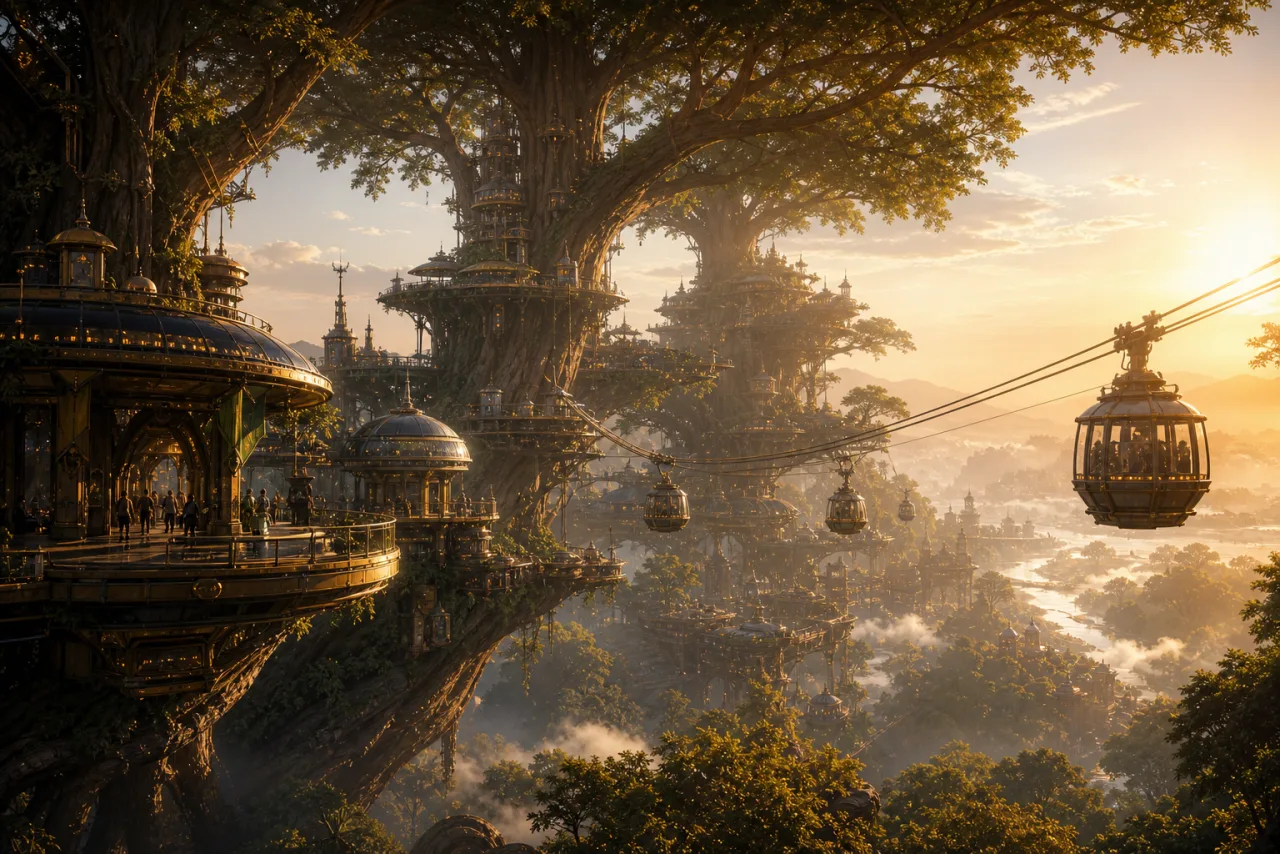
PromptConcept art of a futuristic city built on giant tree trunks, cable cars between the branches, golden hour haze, detailed matte painting.
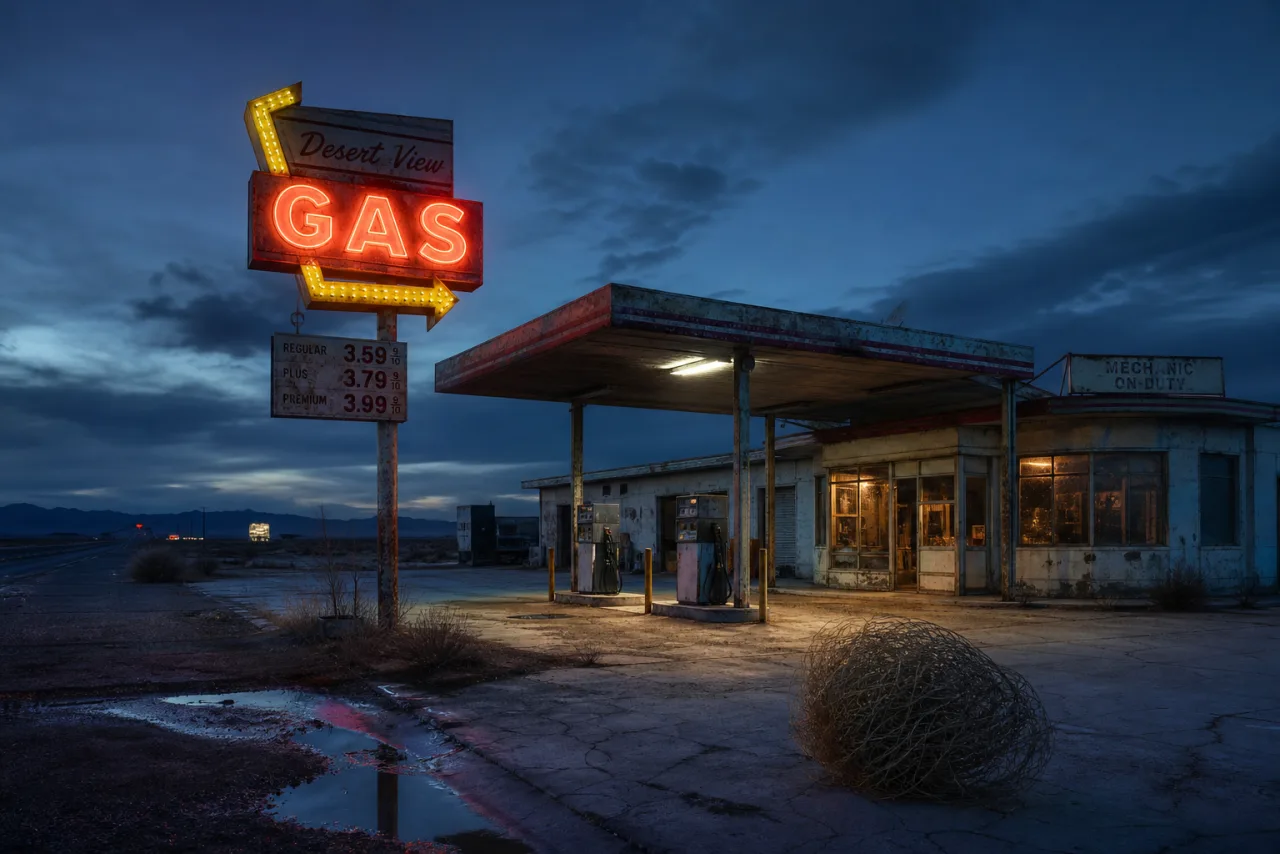
PromptLocation scouting photo: an abandoned roadside gas station at blue hour, a flickering neon sign, a tumbleweed on the forecourt, cinematic.
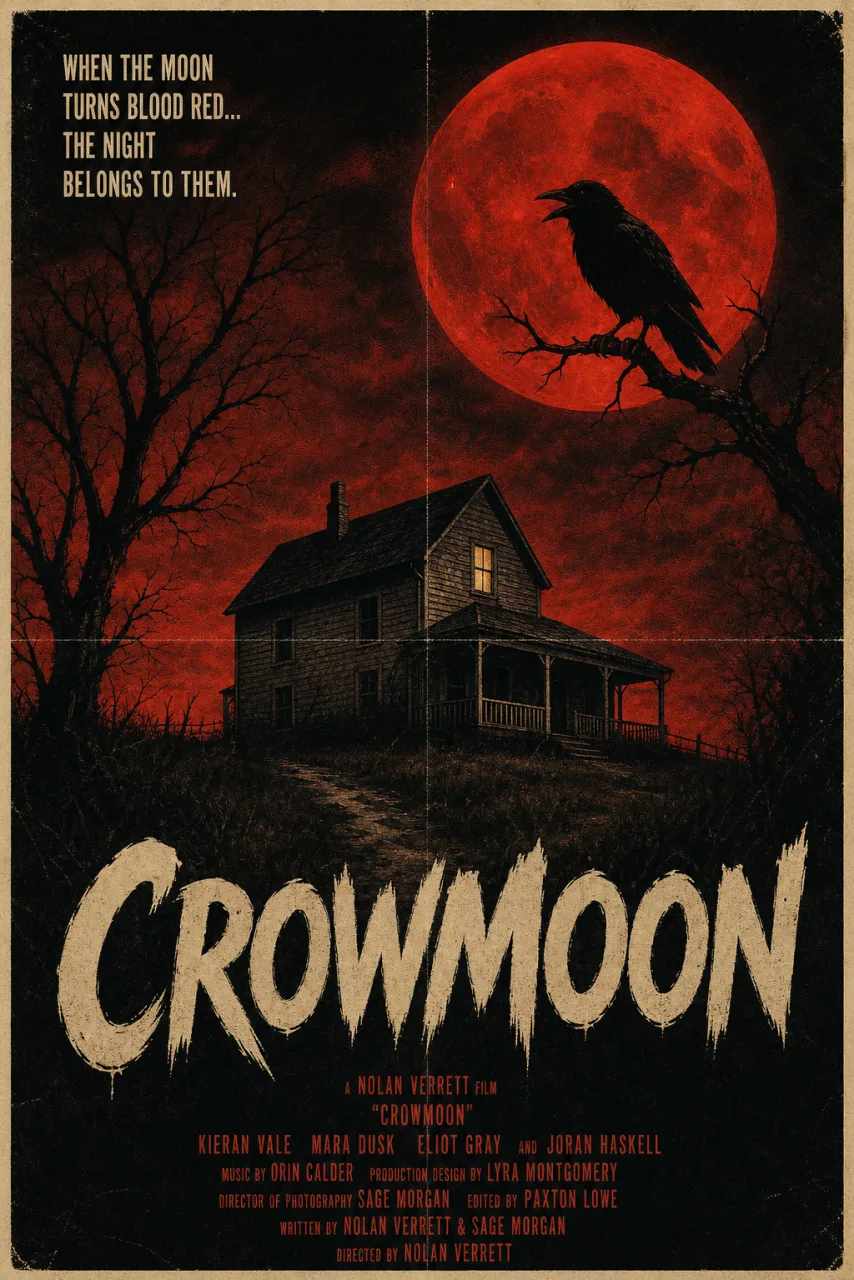
PromptVintage 1970s-style horror movie poster for a fictional film: a lonely farmhouse under a blood-red moon, the title 'CROWMOON' in distressed lettering. Small credits at the bottom use invented names only, with no real actors, studios or company names.
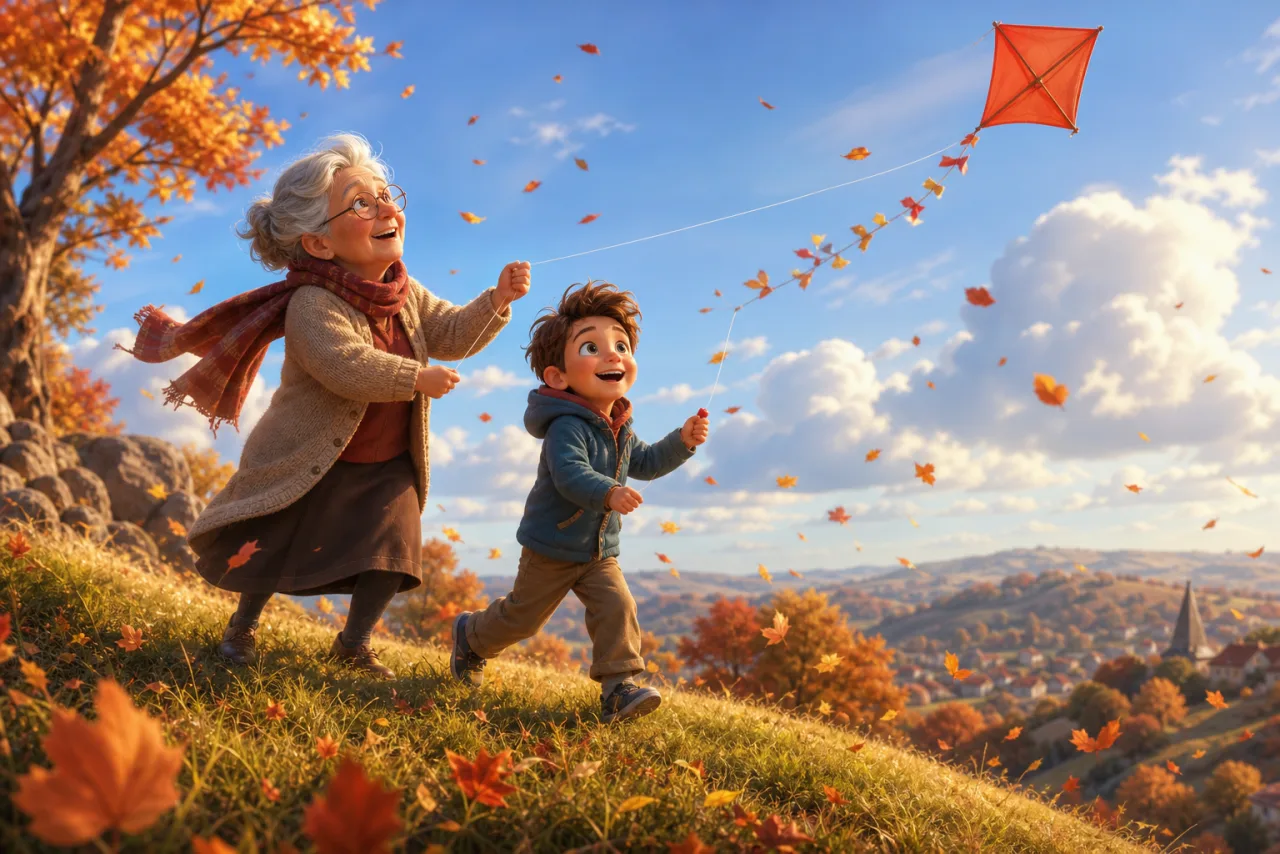
PromptAnimated film still in a warm 3D style: a grandmother and her grandson flying a kite on a windy hill, autumn leaves swirling around them.
What GPT Image 2 can do in Cinemagiq
Straight from the model list Cinemagiq runs today.
| Variant | Resolution | Reference images | Camera Angle Control |
|---|---|---|---|
| GPT Image 2 | Model default | Up to 4 | No |
| GPT Image 1.5 | Model default | Up to 4 | No |
Strengths
- Three fixed, predictable sizes
- Low, medium and high quality levels
- Up to 4 reference images
- GPT Image 1.5 available for matching earlier work
Best for
- Landscape concept art in 3:2
- Posters and portraits in 2:3
- Location scouting stills
- Square prop and icon images in 1:1
Watch-outs
- Only 1:1, 3:2 and 2:3; no 16:9, 9:16 or 21:9.
- No Camera Angle Control, so describe the camera in the prompt.
- Reference tags like @image1 reach the model as plain text, so describe each reference in words.
Prompt tips for GPT Image 2
- Choose the ratio before you write: 3:2 for landscapes and wide scenes, 2:3 for posters and standing characters, 1:1 for props and icons.
- Write the camera into the prompt: shot size, angle, lens and time of day, for example 'wide shot, low angle, blue hour'.
- Put poster titles in quotes and describe the lettering, for example 'the title in distressed lettering, cast names in small type at the bottom'.
- Draft at low or medium quality, then rerun the frame you keep at high.
How to use GPT Image 2 in Cinemagiq
- 1Open the Generation Studio in your project and switch to the Image tab.
- 2Pick GPT Image 2 in the AI Model picker. Each card says what drives the result and its limits.
- 3Write the prompt, set the aspect ratio and resolution, and attach reference images if you have them.
- 4Generate. The button shows the token cost before you start.
- 5Find every take in the Asset Hub under All Generations, and add the one you keep to its shot on the Production Board.