Tutorials5 min read
Character Turnaround Sheet: How to Make One with AI
What a character turnaround sheet is, which views it needs, and how to make one with AI that keeps a character on-model across a whole series. Real examples from a sample production.
A character turnaround sheet is the single most useful picture in a production. It shows one character from every side, in the same pose, outfit and light, and it is what keeps that character the same person from the first episode to the last. In AI production it matters even more than in drawn animation, because image and video models need a clear reference to stay on-model.
This guide covers what goes on a turnaround sheet, how to make one with AI from a single approved image, how to check it, and how to use it so it actually holds a series together. The examples come from Kestrel Bay, a sample series we made in Cinemagiq to show the product.
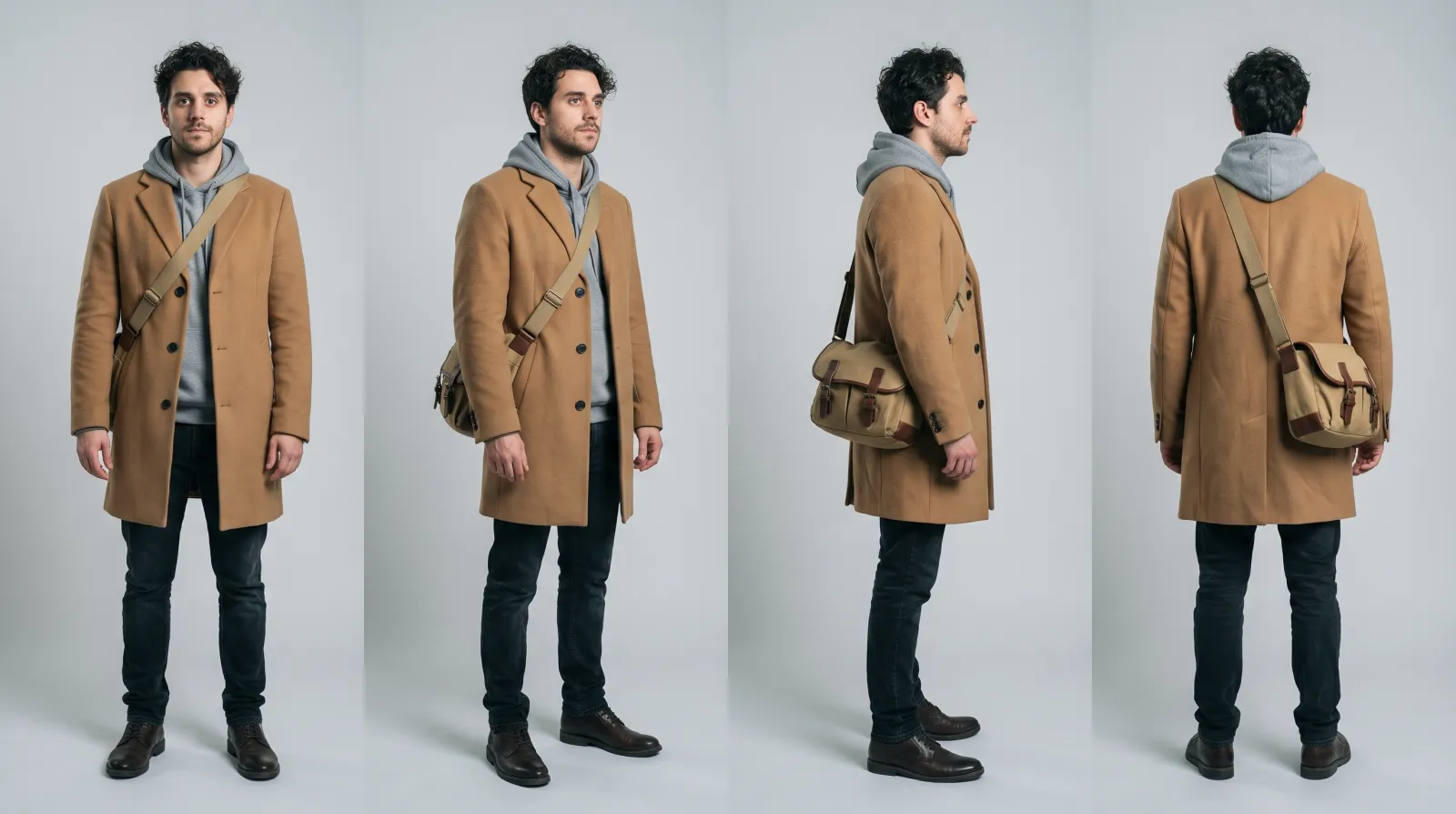
What a turnaround sheet is for
A turnaround answers the questions a single portrait leaves open: what the back of the coat looks like, how the bag strap crosses the chest, where the hair falls in profile, how tall the character stands next to the frame. Every later picture borrows from it:
- Artists and reviewers check new shots against it.
- Image models use it as a reference, so a new keyframe keeps the face and the outfit.
- Video models start from keyframes that were made with it, so the motion begins on-model.
Without one, each new shot reinterprets the character a little. Ten shots later the coat has a different collar and the bag has moved to the other shoulder.
The views to include
| View | Why it matters |
|---|---|
| Front | The face, the outfit's front and the silhouette |
| Three-quarter | The angle most shots actually use |
| Side | Profile, posture, hair and how thick the coat is |
| Back | Hair from behind, straps, seams, the back of the costume |
Add a three-quarter back view if the character often walks away from camera, and a separate head turnaround (the head alone in five angles) if the series lives in close-ups. Keep the pose neutral: standing straight, arms slightly away from the body, feet visible. A dramatic pose hides the details the sheet exists to show.
How to make a turnaround with AI
1. Approve one image first
Start from a single picture of the character that the team has signed off: a portrait or a full-body shot with the final costume. This is the anchor. Every view on the sheet must agree with it.
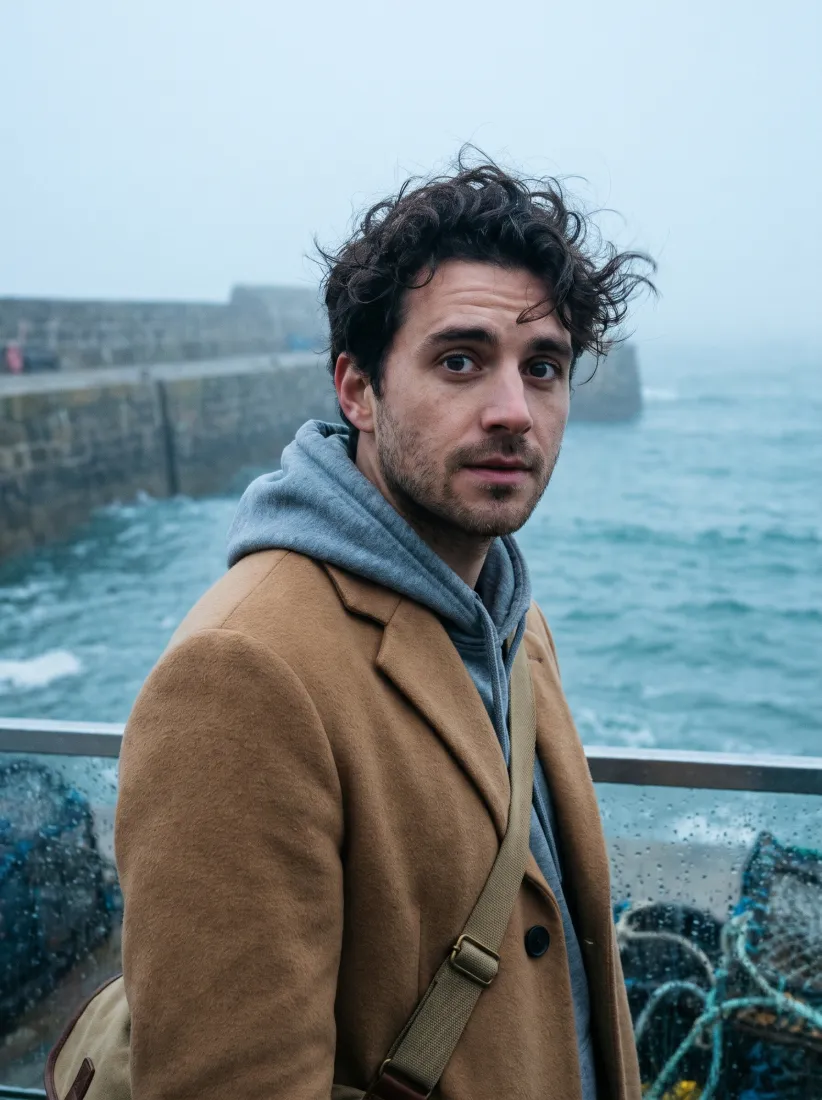
2. Ask for the views side by side
Attach the approved image as a reference and ask for all views in one image, on a plain background, so the model treats them as one character rather than four. A prompt along these lines works well:
Character turnaround sheet of the person in the reference image: four full-body views side by side, front, three-quarter, side and back. Same face, hair, clothing and bag in every view. Neutral standing pose, arms slightly away from the body. Plain light grey studio background, soft even light, no text.
Name the costume pieces that must survive ("the camel coat, the grey hoodie, the canvas bag on the left shoulder"). The details you name are the ones the model protects.
3. Check every view
Look at the sheet one view at a time against the approved image:
- Is it the same face in every view, including the side view?
- Does each costume piece appear in every view where it should be visible?
- Is the bag on the same side in the back view as in the front?
- Are the proportions the same height across the sheet?
If one view drifts, regenerate rather than accept it. A turnaround with one wrong view is worse than none, because the mistake gets copied into every shot.
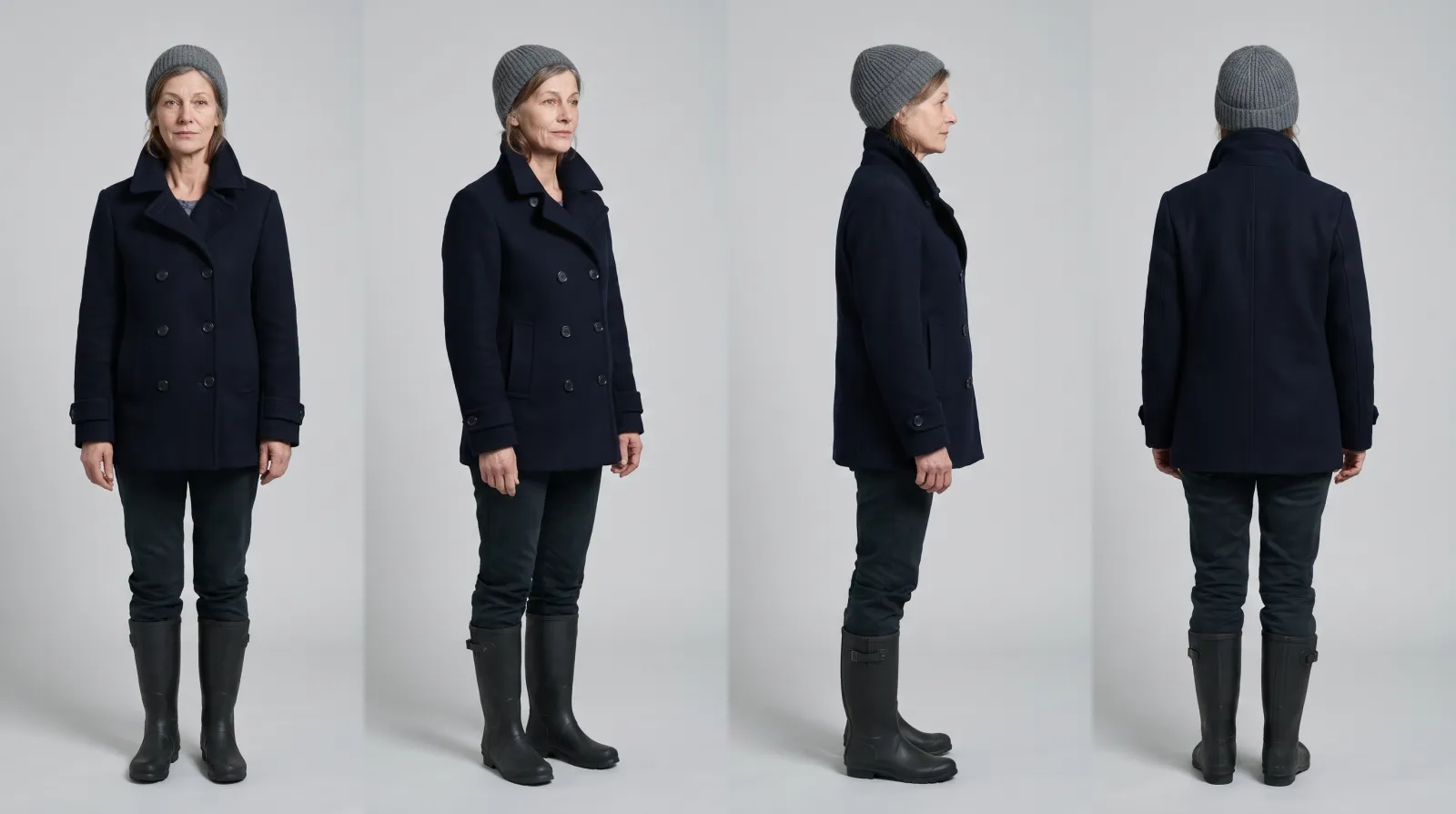
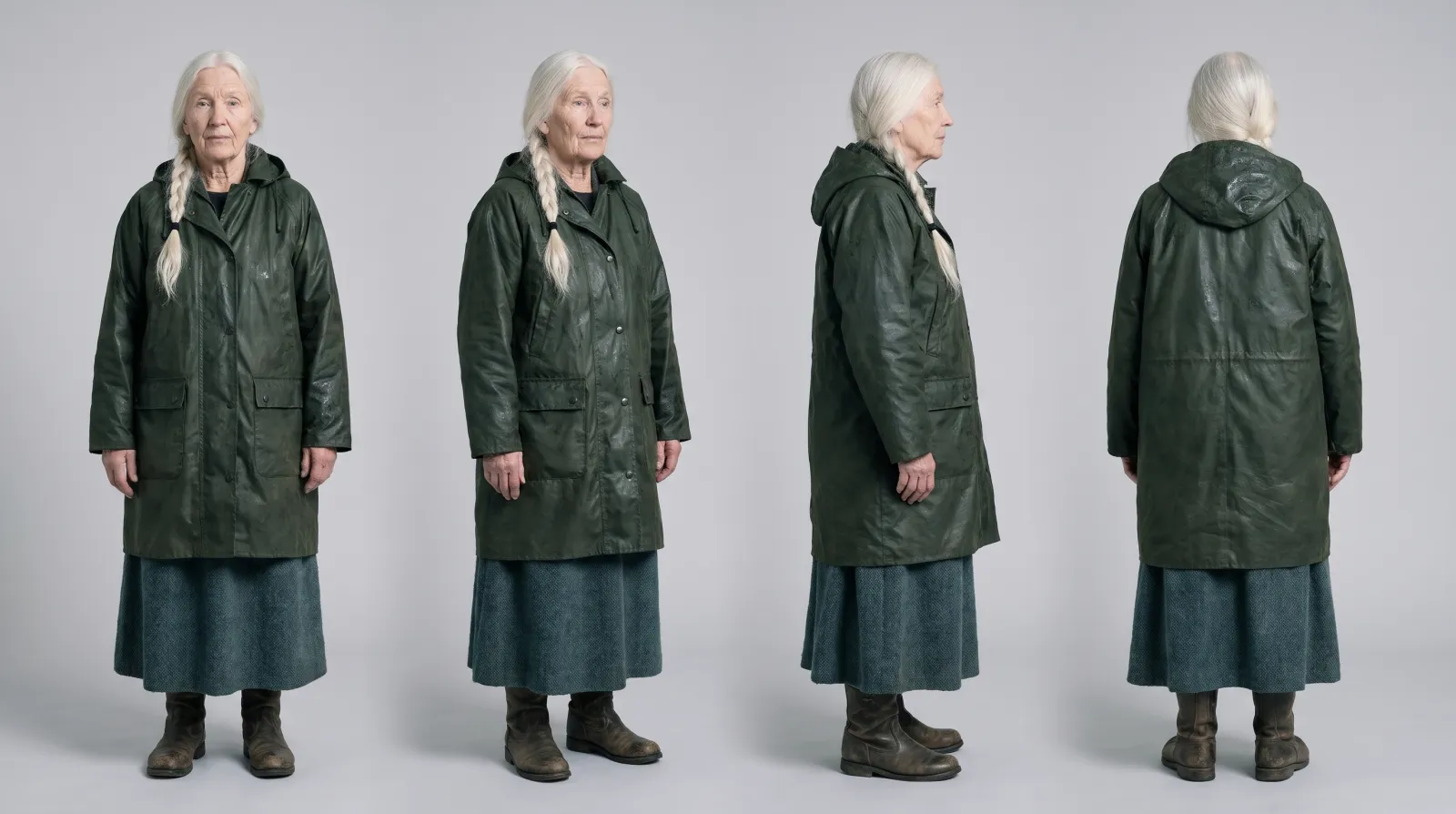
4. Make one for every recurring character
In Kestrel Bay each of the three main characters has a reference portrait, a turnaround and a main asset. The turnarounds were made with Nano Banana Pro from the approved portraits.
Using the turnaround in production
A turnaround only works if it is attached where pictures are made:
- Keyframes. Attach the turnaround and the approved portrait to every keyframe of that character. Pick the view that matches the shot: the side view for a profile shot, the back view for a walk away.
- Storyboards. Panels drawn with the turnaround keep the costume readable even in rough pencil.
- Video. Animate from keyframes made with the turnaround instead of from a text prompt, so the clip starts on-model.
- Versions. When the costume changes (a new episode, a new season), make a new version of the turnaround and mark it as current. Old shots keep pointing at the version they were made with.
Common mistakes
- Starting from text alone. Without an approved image, each view is a new person. Approve one picture first.
- Action poses. They hide the costume. Keep the sheet neutral and put the drama in the shots.
- A busy background. Scenery leaks into later generations. Use a plain backdrop.
- Several sheets in circulation. When two versions float around in chat threads, both get used. Keep one current version with the character.
How to do it in Cinemagiq
In Cinemagiq every character is a row on the Asset Hub board, with columns for references, the turnaround and the main asset. Make the turnaround in the Generation Studio with the approved portrait as a reference, and it lands in the character's folder. From then on you pick it as a reference straight from the Asset Hub whenever you generate that character, and a new version replaces the current one without breaking the shots made with the old one. You can also ask Steve, the project's AI agent, to make a turnaround from the character's main asset and put it in the Turnaround column; he proposes the plan and the price first, and nothing is generated until you approve it.
Read more about keeping characters steady across a whole series in consistent characters in AI, or see how the Asset Hub keeps every version in one place.
Frequently asked questions
What is a character turnaround sheet?
A single reference image that shows one character from several angles, usually front, three-quarter, side and back, in the same neutral pose, outfit and light. It is the reference everyone works from, so the character looks the same in every shot.
Which views does a turnaround need?
Four views cover most productions: front, three-quarter, side and back. Animated series often add a three-quarter back view and a head turnaround for close-ups. Keep the pose neutral, arms slightly away from the body, so the outfit and the silhouette read clearly.
Can AI make a character turnaround sheet?
Yes. Start from one approved image of the character, attach it as a reference, and ask an image model that follows references closely for the views side by side on a plain background. Check every view against the original, and regenerate a single view rather than accepting a drifting one.
Which AI model is best for turnarounds?
Models that read reference images closely do best. In our sample production we used Nano Banana Pro for the turnarounds, because it kept the face, the coat and the bag the same in all four views. Try two models on the same reference before you settle on one.
How do I use a turnaround once it exists?
Attach it as a reference to every generation of that character: keyframes, storyboard panels and the first frames of video clips. Keep it in one place with the character, so the whole team uses the current version.