imageby OpenAIAvailable in Cinemagiq
GPT Image 2.5
OpenAI's GPT Image 2.5: Flare for speed, Sunburst for precision
An image costs from about $0.03
OpenAI's GPT Image 2.5: Flare for speed, Sunburst for precision
An image costs from about $0.03
GPT Image 2.5 is OpenAI's image generation model and the step after GPT Image 2. Cinemagiq runs it in two lanes. GPT Image 2.5 Flare is the fast lane for everyday generation. GPT Image 2.5 Sunburst is the precision lane, built for careful edits where the details have to hold. Both sit on the Generation Studio's Image tab and return up to four images per run.
Unlike GPT Image 2, both lanes render an exact size for each of ten aspect ratios: 1:1, 4:3, 3:4, 5:4, 4:5, 16:9, 9:16, 3:2, 2:3 and 21:9, for example 1536 x 864 at 16:9 and 1792 x 768 at 21:9. Quality runs from low and medium through high to xhigh and max, and the top two levels exist only on GPT Image 2.5. You can attach up to 4 reference images. Camera Angle Control is not available on OpenAI models.
In production, use GPT Image 2.5 Flare to iterate on concept frames, product shots and title cards, then switch to GPT Image 2.5 Sunburst when a frame needs tighter control, such as a multi-panel storyboard or comic page with captions. The 16:9 and 21:9 sizes suit widescreen keyframes that you can set as a First Frame on the Video tab. Results land in the Asset Hub under All Generations.
Made in Cinemagiq with GPT Image 2.5. The exact prompt is under each one.
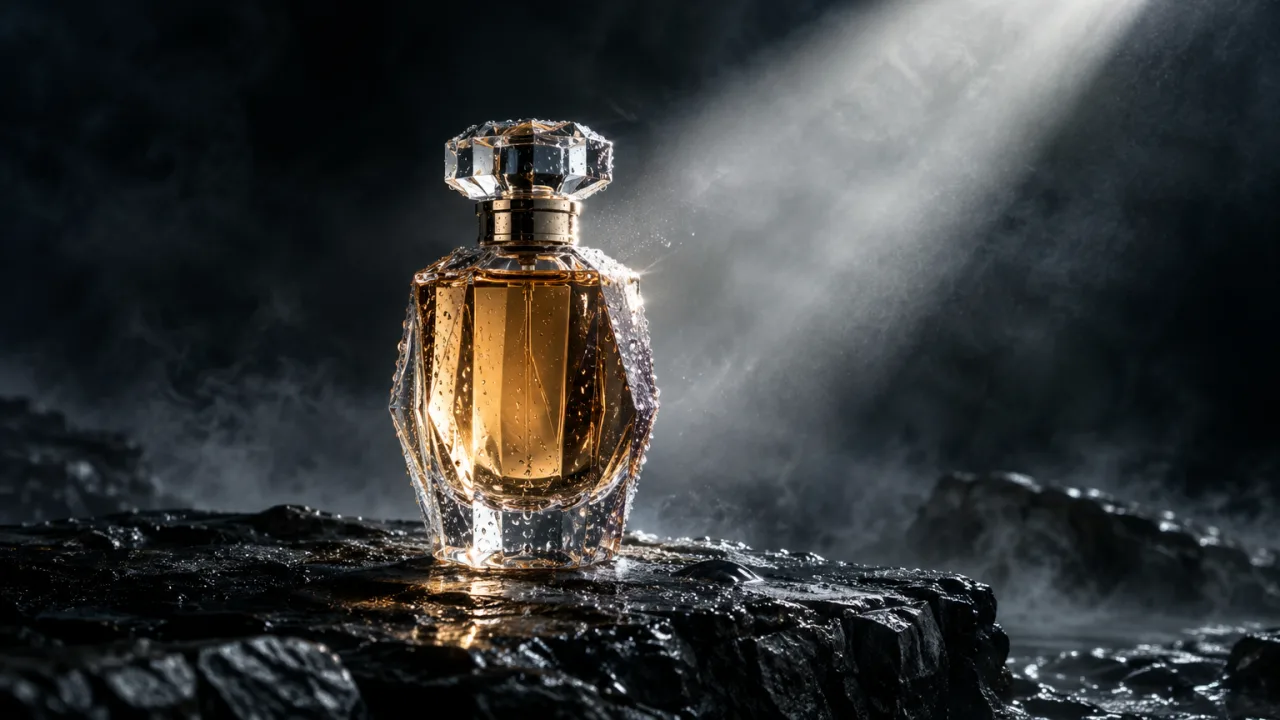
PromptProduct hero shot for a commercial: a faceted glass perfume bottle standing on black wet stone, a single beam of light cutting through mist, droplets on the glass, luxury advertising photography, no logo.
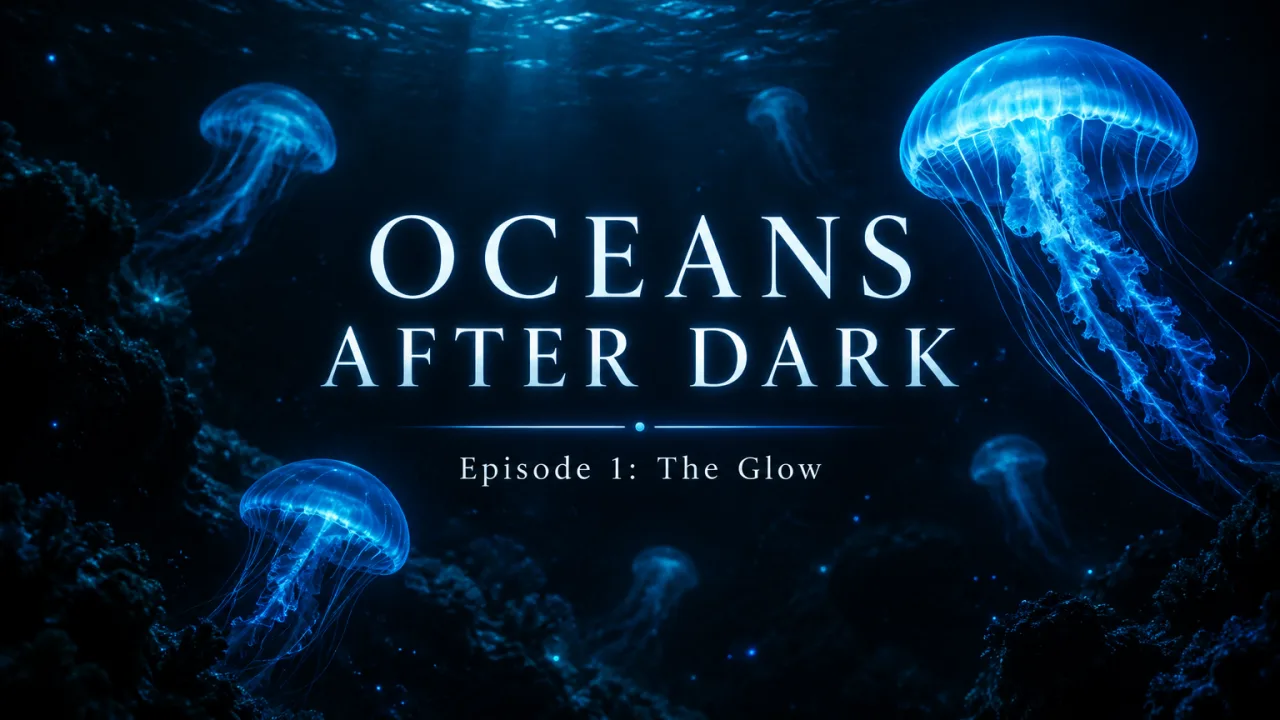
PromptTitle card for a documentary series: the words 'OCEANS AFTER DARK' in elegant serif letters over a dark underwater scene with glowing jellyfish, and the smaller subtitle 'Episode 1: The Glow' underneath.
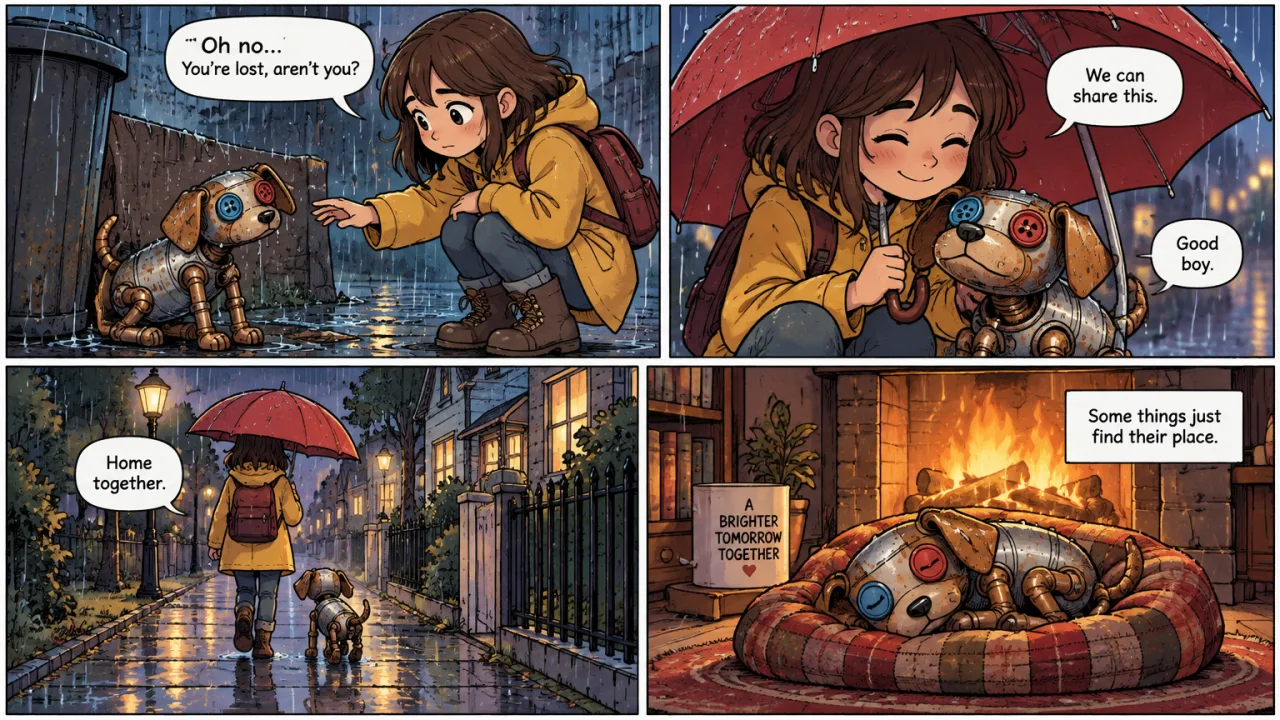
PromptA comic page with four panels telling a tiny story: a girl finds a lost little robot dog built from copper pipes and a tin can, with mismatched button eyes, in the rain; she shares her umbrella with it; they walk home together; the robot dog sleeps by the fireplace. Clean ink lines, flat colors, short readable speech bubbles.
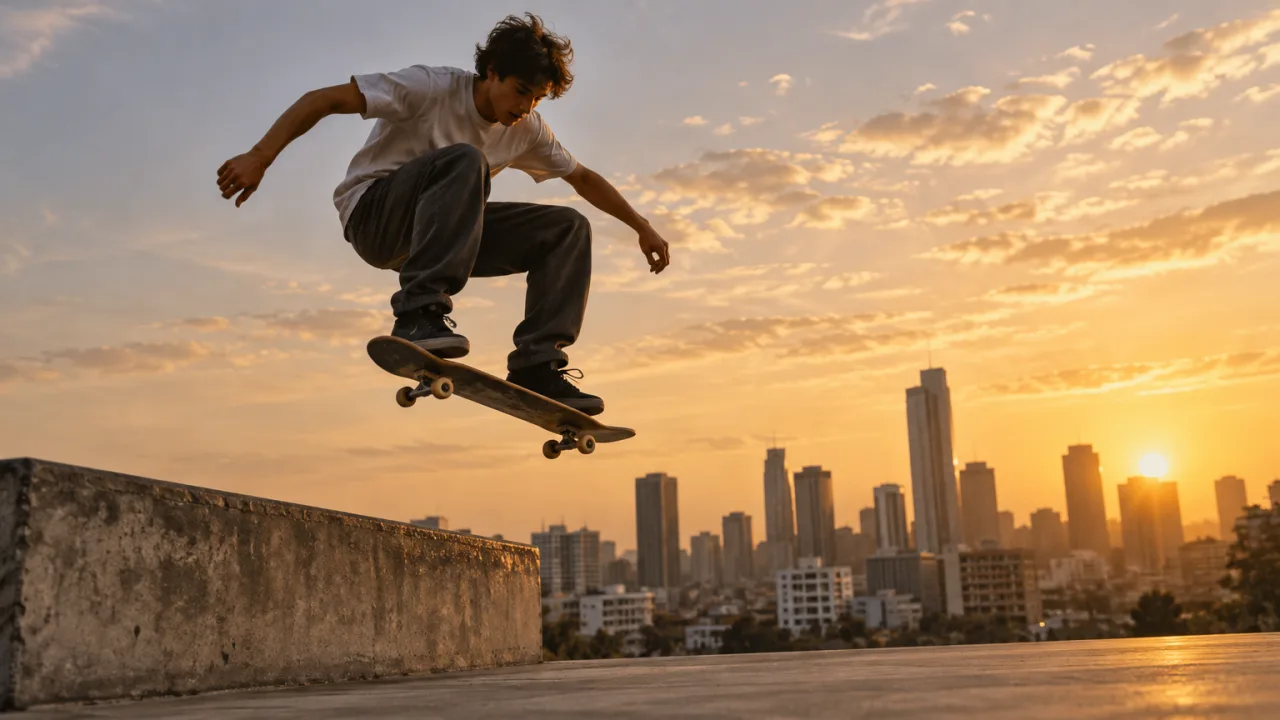
PromptPhotorealistic still: a teenage skateboarder in mid-air over a concrete ledge at golden hour, wearing plain unbranded clothes and plain dark shoes with no logos or stripes, city skyline behind, motion frozen, low angle, 35mm photograph.
Straight from the model list Cinemagiq runs today.
| Variant | Resolution | Reference images | Camera Angle Control |
|---|---|---|---|
| GPT Image 2.5 Flare | Model default | Up to 4 | No |
| GPT Image 2.5 Sunburst | Model default | Up to 4 | No |
Both are OpenAI's GPT Image 2.5, with the same ten aspect ratios, five quality levels and up to 4 reference images. GPT Image 2.5 Flare is the fast lane for everyday generation. GPT Image 2.5 Sunburst is the precision lane for careful edits where details must hold.
Ten, each at an exact size: 1:1, 4:3, 3:4, 5:4, 4:5, 16:9, 9:16, 3:2, 2:3 and 21:9. Panoramic ratios such as 1:4 or 4:1 are outside OpenAI's limits, so for those use Nano Banana 2.1, which also offers 1:8 and 8:1.
GPT Image 2.5 renders ten aspect ratios at exact sizes, where GPT Image 2 offers only 1:1, 3:2 and 2:3. It also adds the xhigh and max quality levels above high, and it comes in two lanes, GPT Image 2.5 Flare and GPT Image 2.5 Sunburst.
No. Camera Angle Control works only on the Google Nano Banana models. With GPT Image 2.5, describe the camera in the prompt instead: shot size, camera height and lens, for example 'low angle, 35mm photograph, subject in the lower third of the frame'.
Generate with GPT Image 2.5 and the other models Cinemagiq runs in one AI-native workspace, and pick the right one per shot.