imageby Black Forest LabsAvailable in Cinemagiq
FLUX.2
FLUX.2 Pro, Max and Dev: stills that respond to lens and camera terms
An image costs from about $0.03
FLUX.2 Pro, Max and Dev: stills that respond to lens and camera terms
An image costs from about $0.03
FLUX.2 is the image model family from Black Forest Labs. Cinemagiq runs three tiers on the Generation Studio's Image tab: FLUX.2 Max, the top tier, FLUX.2 Pro in the middle, and FLUX.2 Dev, the entry tier for drafts. All three share the same inputs and return up to four images per run. FLUX.2 responds to lens and camera language in the prompt, which makes it a natural fit for previsualization.
Every FLUX.2 tier renders at 1K or 2K, and a 4K request delivers 2K. They render ten aspect ratios exactly: 1:1, 4:3, 3:4, 5:4, 4:5, 16:9, 9:16, 3:2, 2:3 and 21:9. You can attach up to 9 reference images to carry a character, costume or location from frame to frame. Camera Angle Control is not available on FLUX.2; instead, write the focal length, aperture and camera height straight into the prompt.
Use FLUX.2 for previz and storyboard frames, lighting and location studies, and photoreal plates where the lens matters, with prompts such as a 24mm interior or an 85mm close-up. Draft on FLUX.2 Dev, then render the chosen frame on FLUX.2 Pro or FLUX.2 Max. Set the result as a First Frame on the Video tab, or add it to a shot on the Production Board from the Asset Hub.
Made in Cinemagiq with FLUX.2. The exact prompt is under each one.
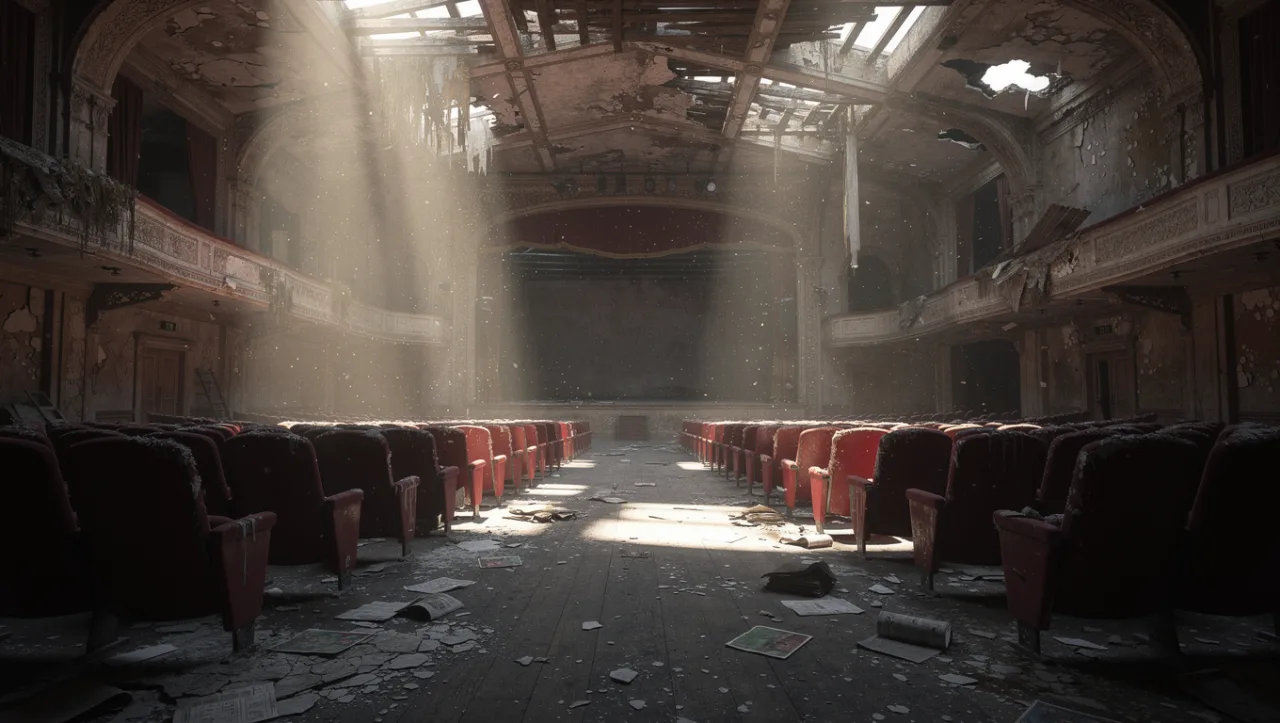
PromptShot on a 24mm lens at f/2.8: the interior of an abandoned theater, rows of red velvet seats covered in dust, beams of light from holes in the roof, deep perspective.
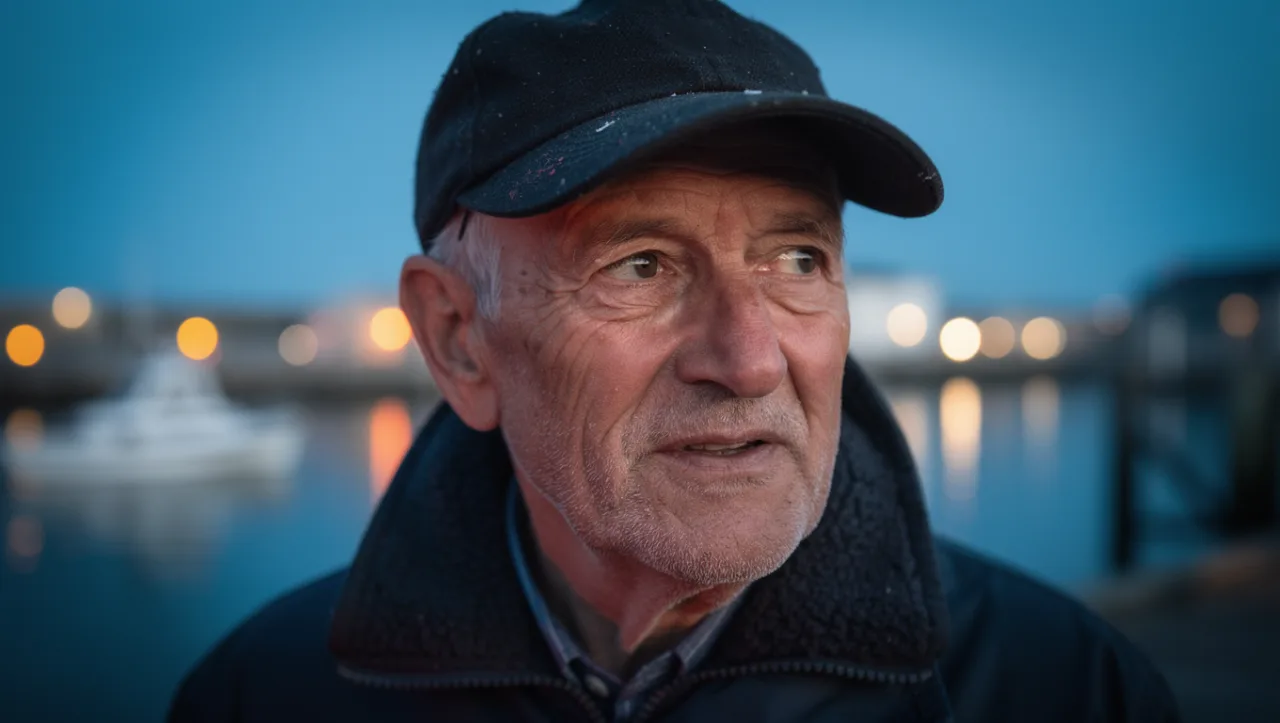
PromptShot on an 85mm lens at f/1.4: close-up portrait of an elderly fisherman with weathered skin and a wool cap, harbor lights blurred behind him, blue hour, shallow depth of field.
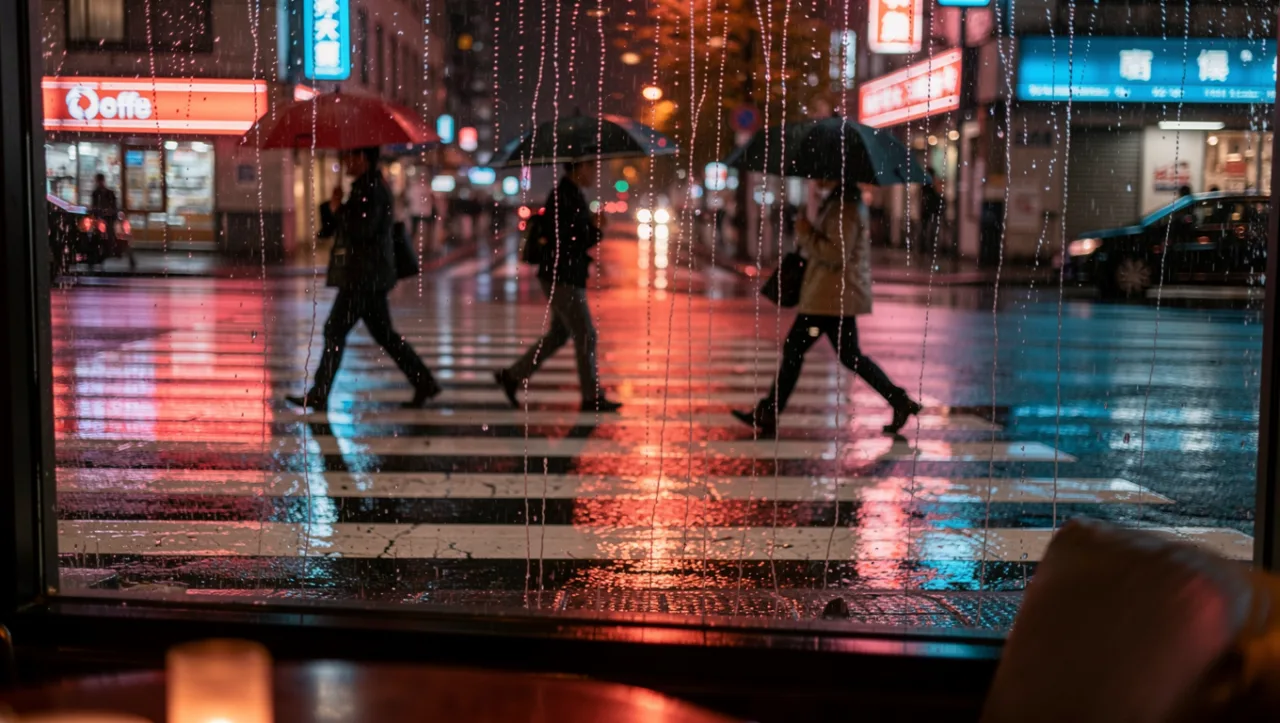
PromptShot on a 35mm lens at eye level: a rainy city crosswalk at night seen through a cafe window, people with umbrellas crossing, neon reflections on the wet asphalt, raindrops on the glass in the foreground.
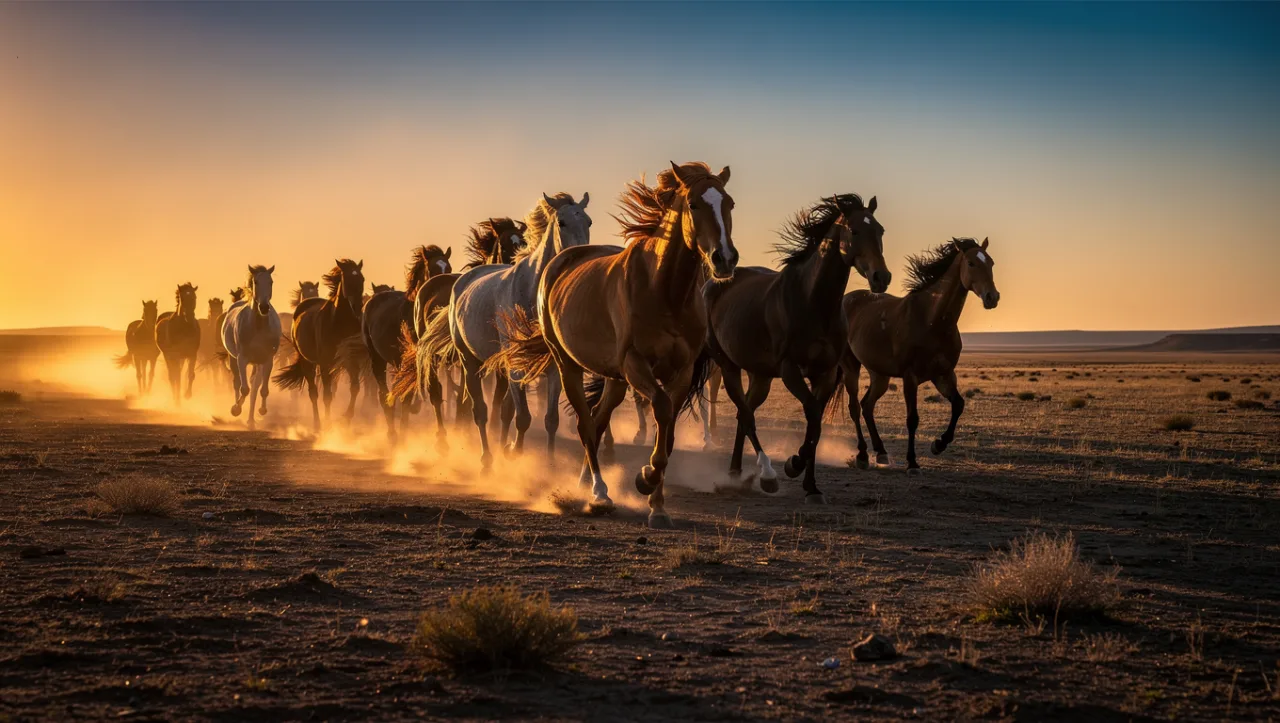
PromptShot on a 200mm telephoto lens: a herd of wild horses running across a dusty plain at sunset, compressed perspective, dust clouds glowing in the backlight.
Straight from the model list Cinemagiq runs today.
| Variant | Resolution | Reference images | Camera Angle Control |
|---|---|---|---|
| FLUX.2 Pro | 1K, 2K | Up to 9 | No |
| FLUX.2 Max | 1K, 2K | Up to 9 | No |
| FLUX.2 Dev | 1K, 2K | Up to 9 | No |
They are three tiers of the same Black Forest Labs model with the same inputs: 1K or 2K output, ten aspect ratios and up to 9 references. FLUX.2 Max is the top tier, FLUX.2 Pro sits in the middle, and FLUX.2 Dev is the entry tier, handy for drafts.
Yes. FLUX.2 responds to lens and camera language, so focal length, aperture, camera height and shot size in the prompt steer the frame. Write them plainly, for example 'shot on a 35mm lens at eye level' or 'top-down shot on a 50mm lens'.
No. FLUX.2 renders at 1K or 2K, and a 4K request delivers 2K. For 4K stills, use Nano Banana 2.1, Nano Banana Pro or Seedream 5.0 Lite on the same Image tab, then bring the frame into the same project.
Up to 9 on every tier. Use them to carry a character's face, a costume or a location from frame to frame, and say in the prompt what each reference is for so the model knows which details to keep.
Generate with FLUX.2 and the other models Cinemagiq runs in one AI-native workspace, and pick the right one per shot.