GPT Image 2.5 is OpenAI's image model, and Cinemagiq runs it in two lanes: GPT Image 2.5 Flare and GPT Image 2.5 Sunburst. For film work it handles concept art, storyboard sheets, character and expression sheets, posters, title cards and first frames for image-to-video. Its ten aspect ratios mean a frame can come out in the exact shape a deliverable needs, from a square expression sheet to a 21:9 scope frame.
How GPT Image 2.5 reads a prompt
GPT Image 2.5 takes a written prompt and a handful of settings:
- Two lanes. GPT Image 2.5 Flare is the fast lane, built for iterating. GPT Image 2.5 Sunburst is the precision lane, for exact edits and frames where every part has to land. Same prompt style, different job.
- Ten exact aspect ratios: 1:1, 4:3, 3:4, 5:4, 4:5, 16:9, 9:16, 3:2, 2:3 and 21:9. Pick the one that matches the deliverable rather than cropping later.
- Quality levels: five, from low up to max. Lower levels are for exploring, higher levels for the frame you keep.
- Reference images: up to 4. Say what each one is for.
- No Camera Angle Control. That setting is only on the Nano Banana models, so angles and shot sizes go into the prompt text.
- Text in the image: for captions, labels and titles, write the exact words and keep them short.
For a sheet with several panels, say the layout first, then describe each panel in order. For a single frame, open with the medium or shot, then the subject and setting.
A prompt structure that works
[Image type or layout]: [subject, or each panel numbered in order], [setting], [light], [style or medium], [labels or captions, with the exact words if they matter].
For a single frame, skip the numbering. For a sheet, make the count and the grid agree: six panels means a 3 by 2 or 2 by 3 grid.
What each example shows
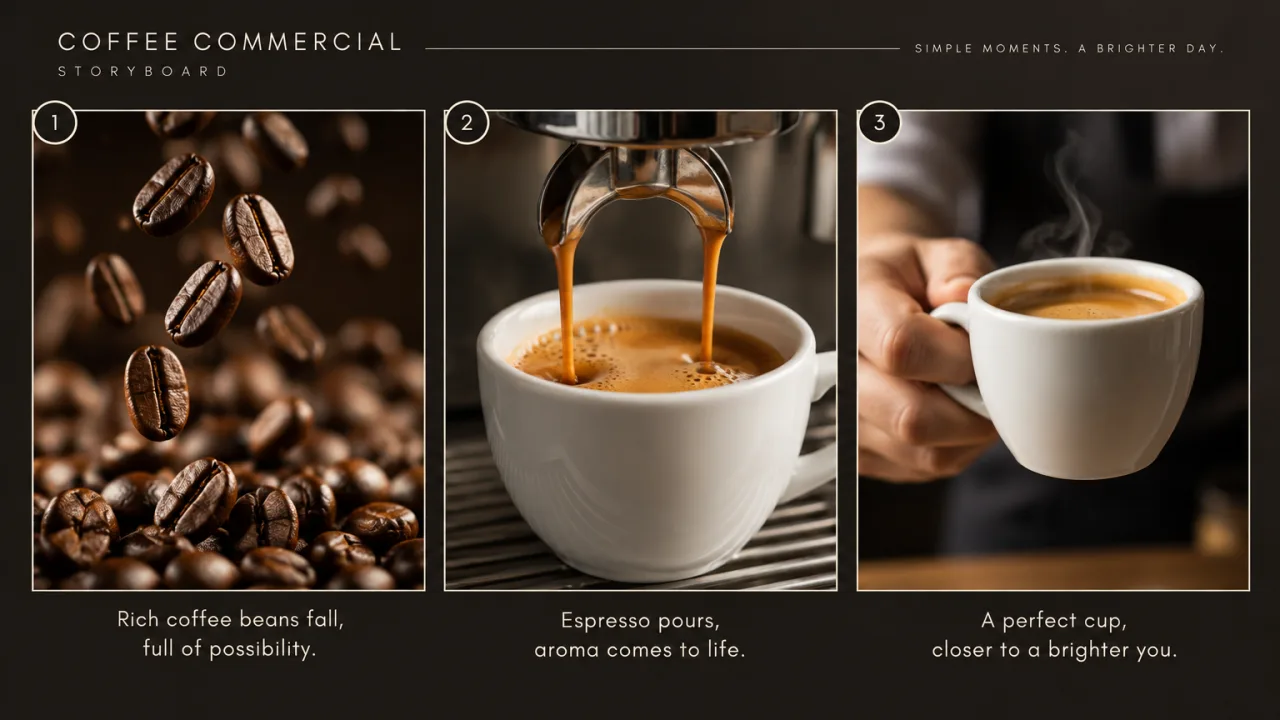
Example 1: a storyboard sheet on Sunburst. The layout is stated before any content: "three numbered frames in a row". Each frame then gets its own numbered beat with a shot size or action, "1) close-up of coffee beans falling, 2) espresso pouring into a white cup, 3) a hand lifting the cup toward the camera", so the sheet reads as a sequence. "A short caption under each frame" asks for text without dictating it. This one runs on GPT Image 2.5 Sunburst, the precision lane, because a multi-panel sheet has many parts that each need to land.
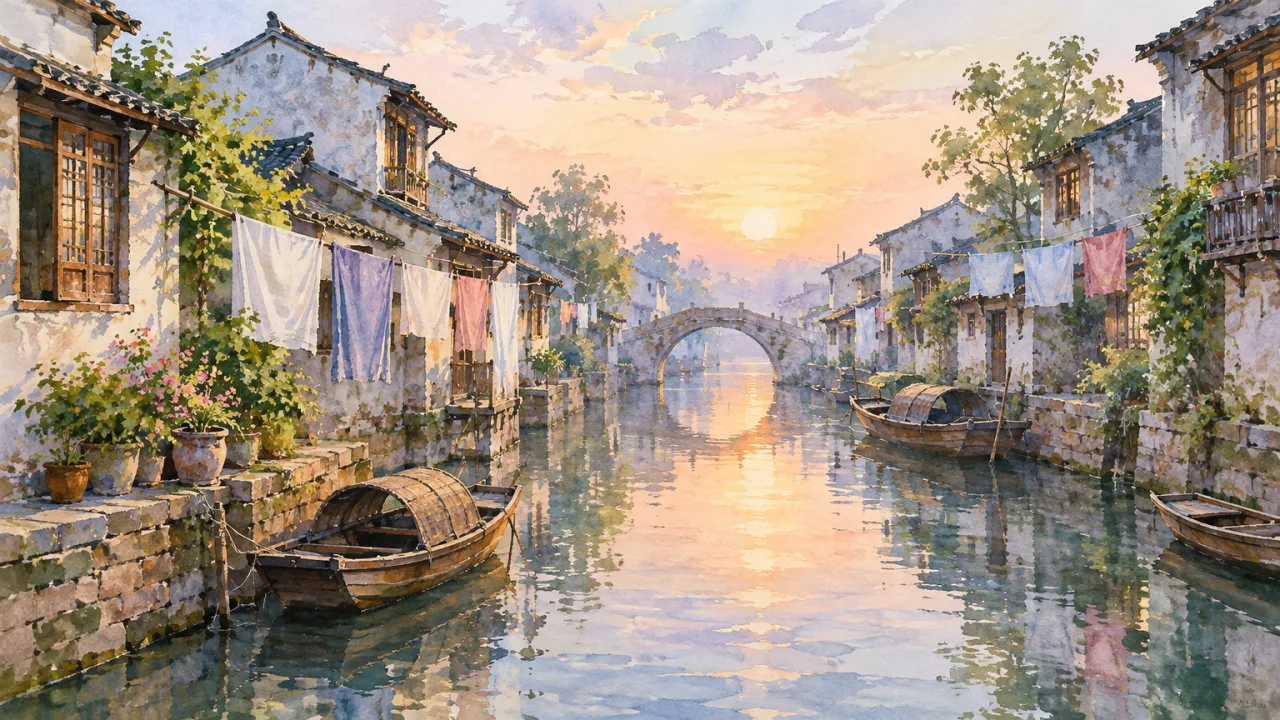
Example 2: a watercolor on Flare. The medium leads, "Watercolor illustration", and the prompt then describes how it is painted, "loose brushwork", not just what is painted. Concrete details ("small wooden boats, laundry lines between the houses") give the scene a sense of place, and "no people" keeps the frame empty. A look study like this suits GPT Image 2.5 Flare, the fast lane, where you run many variations.
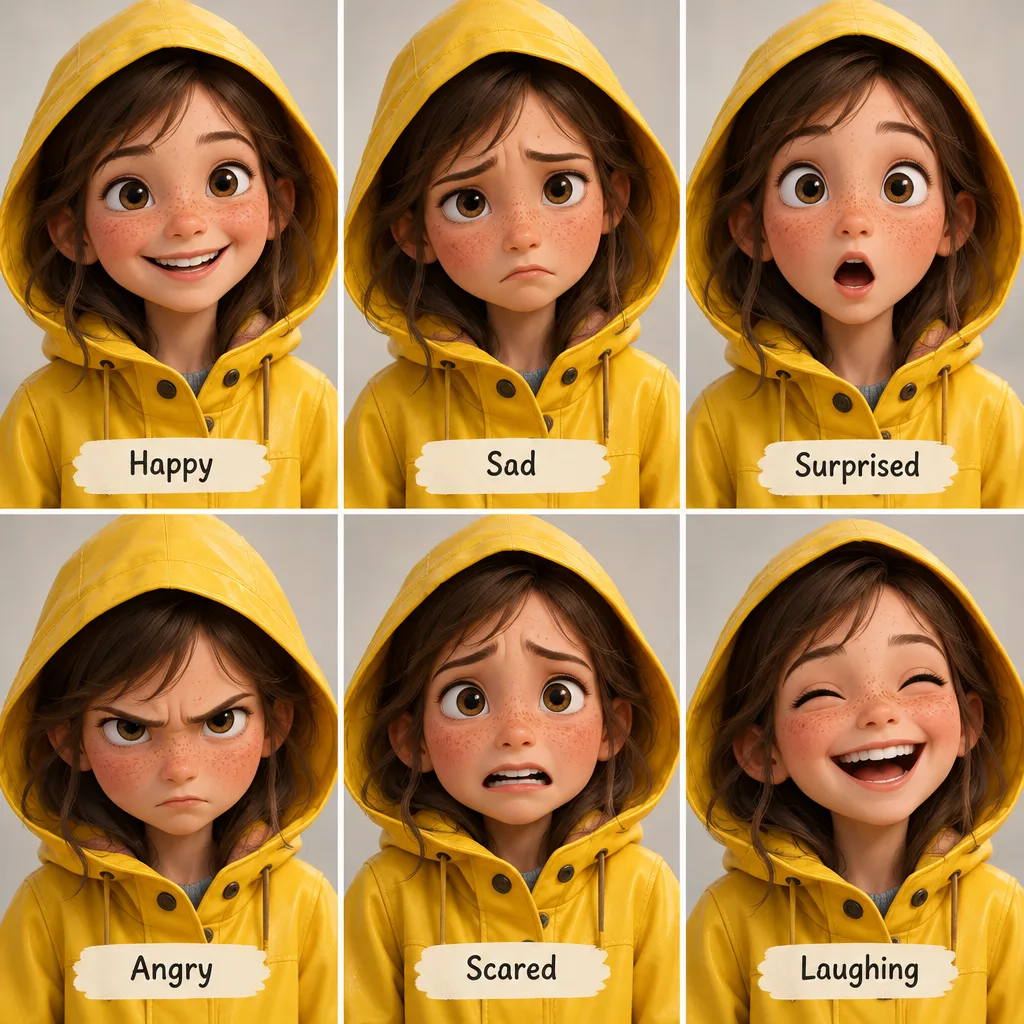
Example 3: an expression sheet on Flare. The character is fixed in one phrase, "the same freckled girl in a yellow raincoat", and repeated as an instruction: "consistent face and outfit". The six expressions are listed in parentheses and the grid matches the count, "in a 3 by 2 grid". "Each expression labeled" turns the image into a usable reference sheet, and the 1:1 ratio fits a square grid.
All three examples ran at medium quality.
Tips and common mistakes
- Choose the lane before you write. Use GPT Image 2.5 Flare to explore looks and compositions. Switch to GPT Image 2.5 Sunburst for exact edits and layouts where every element matters.
- Match the ratio to the deliverable. 1:1 for sheets, 4:5 or 2:3 for posters, 16:9 for frames, 9:16 for vertical cuts, 21:9 for a scope look.
- Do the grid math. If you ask for six expressions, ask for a 3 by 2 grid. A count that does not fit the grid invites the model to improvise.
- Number the panels in reading order. "1) ... 2) ... 3) ..." makes a storyboard sheet read left to right as a sequence.
- Write the angle into the prompt. Without Camera Angle Control, phrases such as "low-angle shot" or "top-down view" belong near the start.
- Explore low, finish high. Settle the composition at a lower quality level, then raise it for the final frame.
How to do it in Cinemagiq
- Pick a lane. On the Generation Studio's Image tab, choose GPT Image 2.5 Flare or GPT Image 2.5 Sunburst in the model picker (see the GPT Image 2.5 model page).
- Set ratio and quality. Pick one of the ten aspect ratios and a quality level before you generate.
- Start from a still. Image to Prompt turns an image you like into an editable prompt you can adapt to your scene.
- Template your sheets. Save working prompts in the project's Prompt Library with
{{placeholders}}, for example an expression sheet with {{character}} and {{style}}, so every character gets the same layout.
- Use the result. Every generation lands in the Asset Hub under All Generations, named after the model and the time. To animate a frame, add it as the First Frame on the Video tab, and read our guide to image-to-video AI.
Try these prompts in Cinemagiq
Run GPT Image 2.5 and the other leading models in one AI-native workspace.