FLUX.2 is the image model family from Black Forest Labs, and Cinemagiq runs three variants: FLUX.2 Pro, FLUX.2 Max and FLUX.2 Dev. FLUX.2 responds to lens and camera language, so it rewards prompts written the way a cinematographer talks: angle, focal length, distance. That makes it useful for previz frames, location and lighting studies, storyboard frames, posters and first frames for image-to-video, anywhere you want to specify the camera as well as the content.
How FLUX.2 reads a prompt
FLUX.2 takes a written prompt plus a few settings:
- Lens and camera language. Angles ("low-angle", "top-down"), focal lengths ("14mm", "50mm") and lens types ("ultra-wide", "macro") are instructions it responds to, not decoration.
- Resolution: 1K or 2K on all three variants.
- Aspect ratio: set in the Image tab. Pick it before you write, because a lens choice and a frame shape work together.
- Reference images: up to 9. Say in the prompt what each one is for.
- No Camera Angle Control. That setting is only on the Nano Banana models. With FLUX.2 the angle lives in the prompt text.
- Text in the image: for a sign or a title, write the exact words and keep them short.
A pattern that works: camera first, content second. Opening with "Low-angle shot on a 14mm ultra-wide lens:" sets up how the frame is seen before you say what is in it. Then name the subject, the setting and the light, and finish with the optical effect you expect from the lens.
A prompt structure that works
[Angle] shot on a [focal length] [lens type]: [subject with one or two concrete details], [setting], [light], [the optical effect you want, such as perspective distortion].
Use one angle and one lens per prompt. If the lens does not matter for a shot, leave the slot out rather than adding a number for the sake of it.
What each example shows
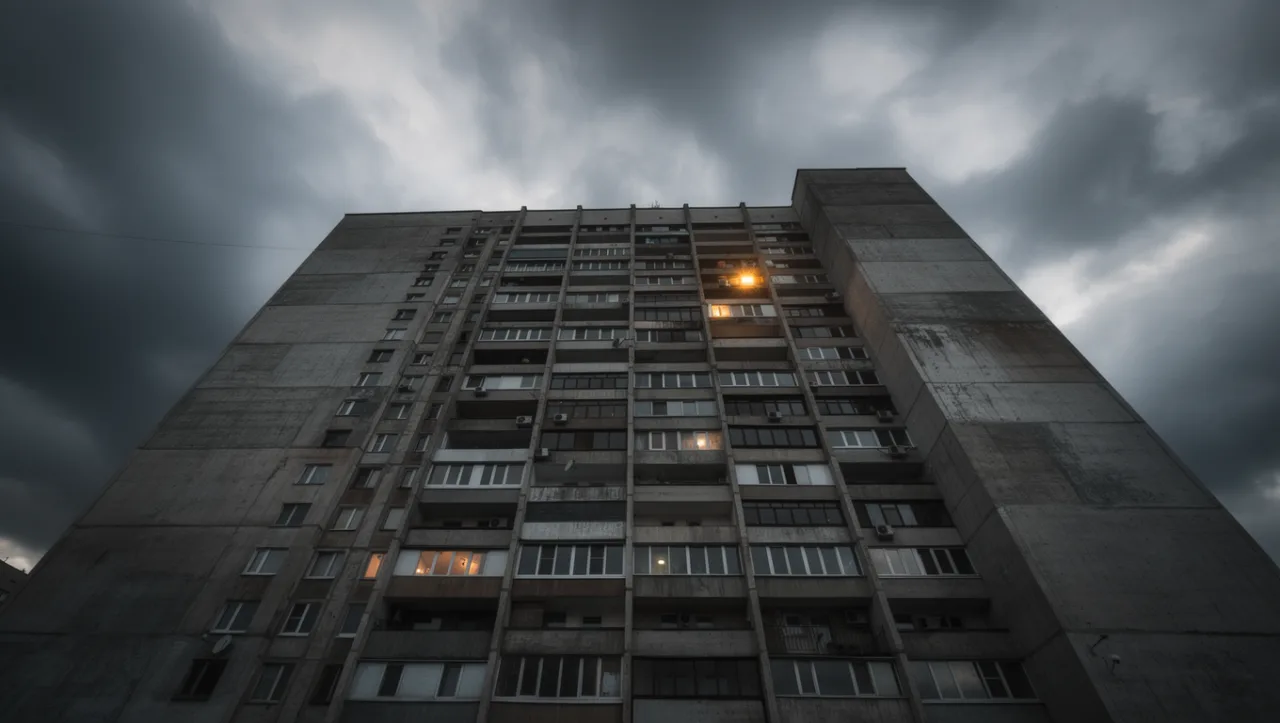
Example 1: 14mm ultra-wide, low angle. The prompt opens with the full camera setup, "Low-angle shot on a 14mm ultra-wide lens:", then gives the building a single focal point, "a single lit window", against a "stormy sky". The final phrase, "strong perspective distortion", names the effect an ultra-wide lens at a low angle produces, so the lens and the result described in words point the same way.
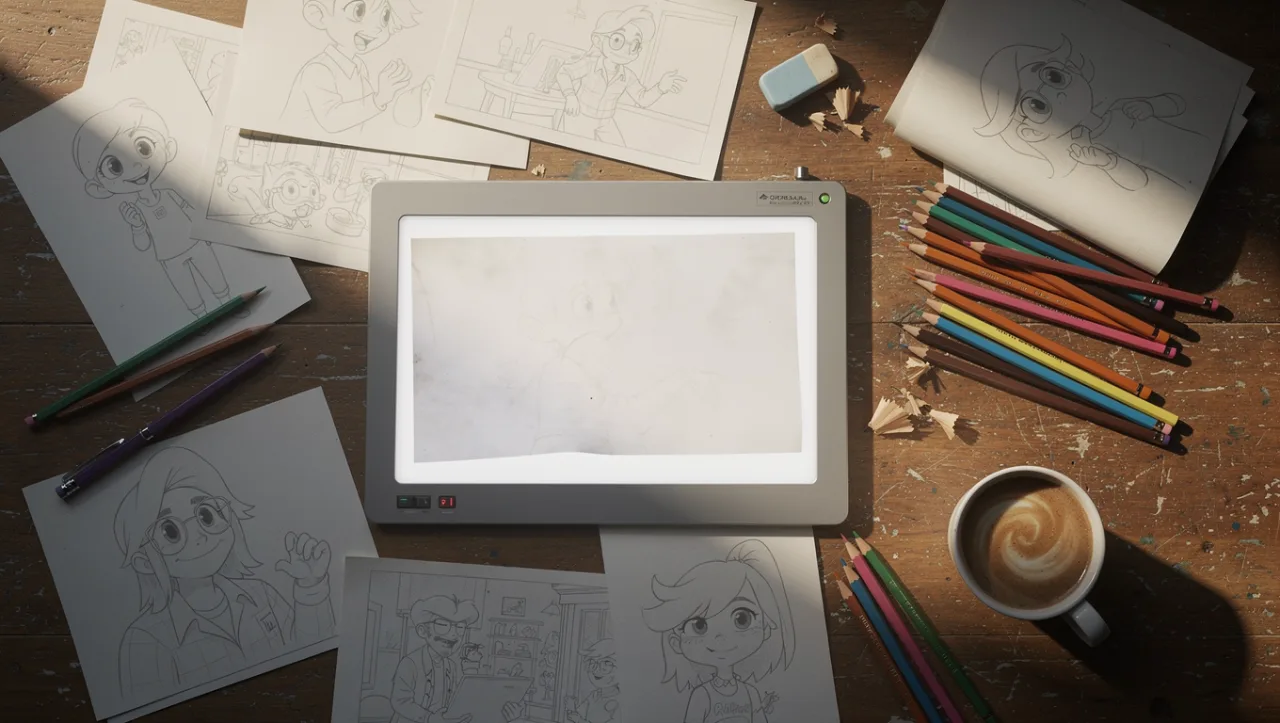
Example 2: 50mm, top-down. "Top-down shot on a 50mm lens:" pairs an overhead angle with a normal focal length, the classic setup for a flat-lay. The rest is a prop inventory, "pencil sketches, a lightbox, colored pencils and a cup of coffee", followed by the light, "soft daylight", and an exclusion, "no people". The camera does the composing, and the prompt only has to list what is on the desk.
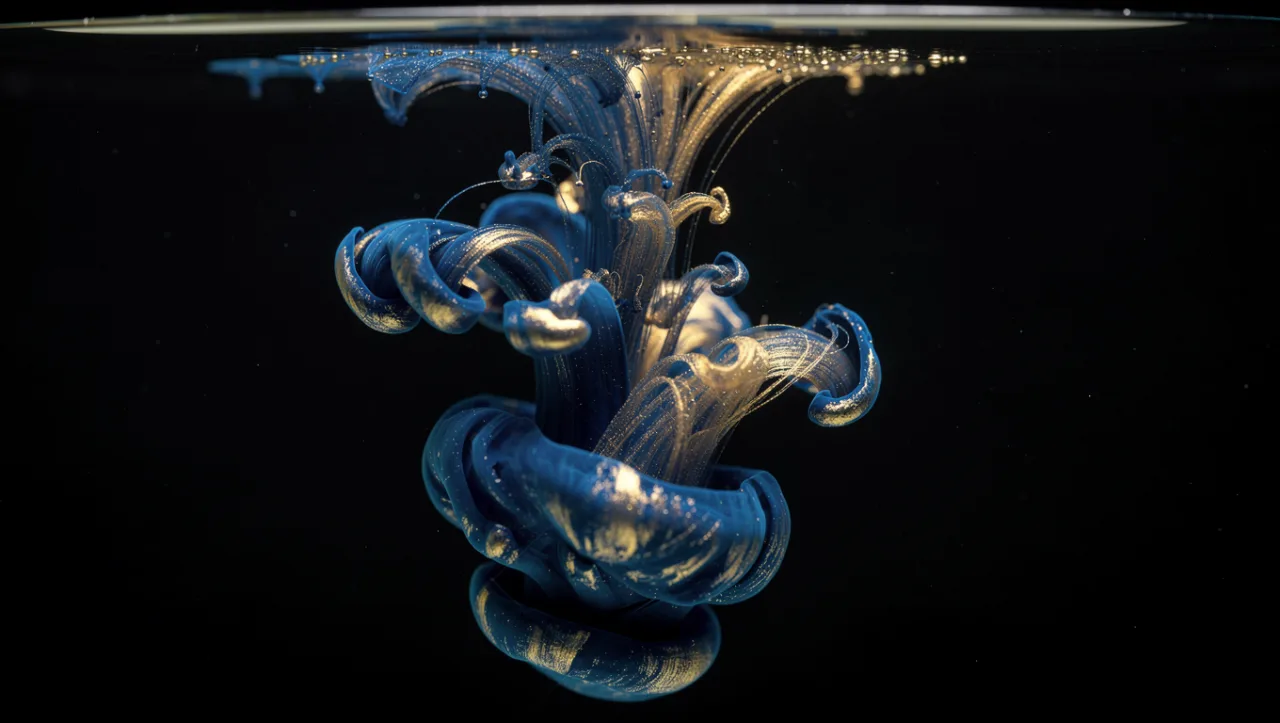
Example 3: 100mm macro. "Shot on a 100mm macro lens:" leaves out the angle on purpose. A macro shot is defined by distance and scale, so the subject is a single small thing, "a single drop of ink spreading in clear water". Color is named precisely, "swirling blue and gold", and "black background" isolates the subject so nothing competes with it.
Tips and common mistakes
- Put the camera first. Angle and lens at the start of the prompt frame everything that follows.
- Name the effect, not just the number. "14mm ultra-wide, strong perspective distortion" is clearer than "14mm" alone.
- Never mix lenses. "A 14mm telephoto close-up" gives two conflicting instructions. One lens, one look.
- Write the angle in words. Camera Angle Control is not available on FLUX.2, so "low-angle", "top-down" or "eye-level" goes into the prompt.
- Use a 50mm for neutral coverage. When a shot should feel like a plain record of the scene, a normal lens keeps proportions natural and the composition readable.
- Give references a job. With up to 9 reference images, say what each one carries: the character, the location, or the look.
How to do it in Cinemagiq
- Pick a variant. On the Generation Studio's Image tab, choose FLUX.2 Pro, FLUX.2 Max or FLUX.2 Dev in the model picker (see the FLUX.2 model page).
- Set the frame. Choose the aspect ratio, then 1K or 2K resolution, before you write the prompt.
- Reverse-engineer a look. Image to Prompt turns a still you like into an editable prompt. Add the angle and lens you want at the start.
- Build a lens library. Save working prompts in the project's Prompt Library as templates with
{{placeholders}}, for example {{angle}} shot on a {{lens}}: {{subject}}, so the team reuses proven camera setups.
- Animate the frame. Results land in the Asset Hub under All Generations, named after the model and the time. Add one as the First Frame on the Video tab, and see our guide to image-to-video AI.
Try these prompts in Cinemagiq
Run FLUX.2 and the other leading models in one AI-native workspace.