Nano Banana Pro is Google's Gemini 3 Pro Image model, and it sits next to Nano Banana 2.1 in Cinemagiq's Generation Studio. Use it for the stills a film project runs on: concept art, storyboard frames, character sheets, posters, title cards, and first frames you will animate later. Having two Google models in the same picker is useful in itself. When a frame is not landing on one, run the same prompt on the other before you start rewriting.
This guide covers three kinds of prompt: a designed layout with text, a stylized animation still, and a photographic set.
How Nano Banana Pro reads a prompt
Nano Banana Pro takes a written prompt plus a few optional inputs:
- Resolution: up to 4K. Explore small, then render the keeper at a higher resolution.
- Aspect ratio: set in the Image tab. Choose it first, since the shape of the frame changes the composition you should describe.
- Reference images: up to 6. Use them for a character, a location or a look, and say what each one is for.
- Camera Angle Control: available on the Nano Banana family. Presets are Front, Rear, Left Side, Right Side, Low Angle, High Angle and Custom, and the camera types are Top-Down, Wide-Angle and Close-Up. The setting is added to your prompt and steers the result. It is not a guarantee.
- Text and layouts: when the image is a card, a chart or a poster, describe the structure, then give the exact words.
Write in full sentences, not keyword lists. Open with the medium, describe the content in concrete nouns, then the light and mood. If something must not appear, say so plainly at the end.
A prompt structure that works
[Medium or image type]: [subject or layout] [key details, or the exact text to show], [setting], [light sources and their colors], [mood], [what to leave out].
For a layout, the "key details" slot holds the structure and the words: the columns, the rows, the labels. For a scene, it holds the action and the props.
What each example shows
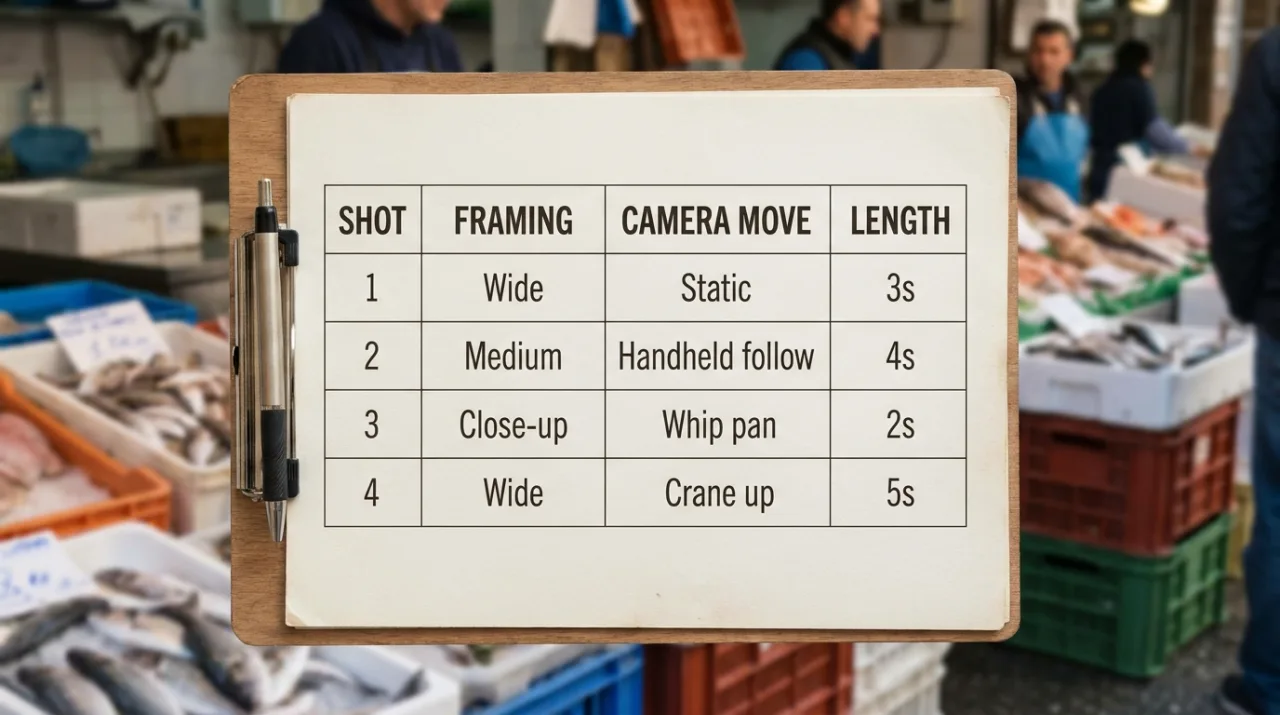
Example 1: a shot list card. This prompt treats the image as a document. It names the format ("designed as a table") and the exact column headings ("Shot, Framing, Camera move and Length"), then spells out all four rows, such as "2 Medium, Handheld follow, 4s". Nothing is left for the model to invent. The closing request, "Minimal design, readable text", tells it the words matter more than decoration.
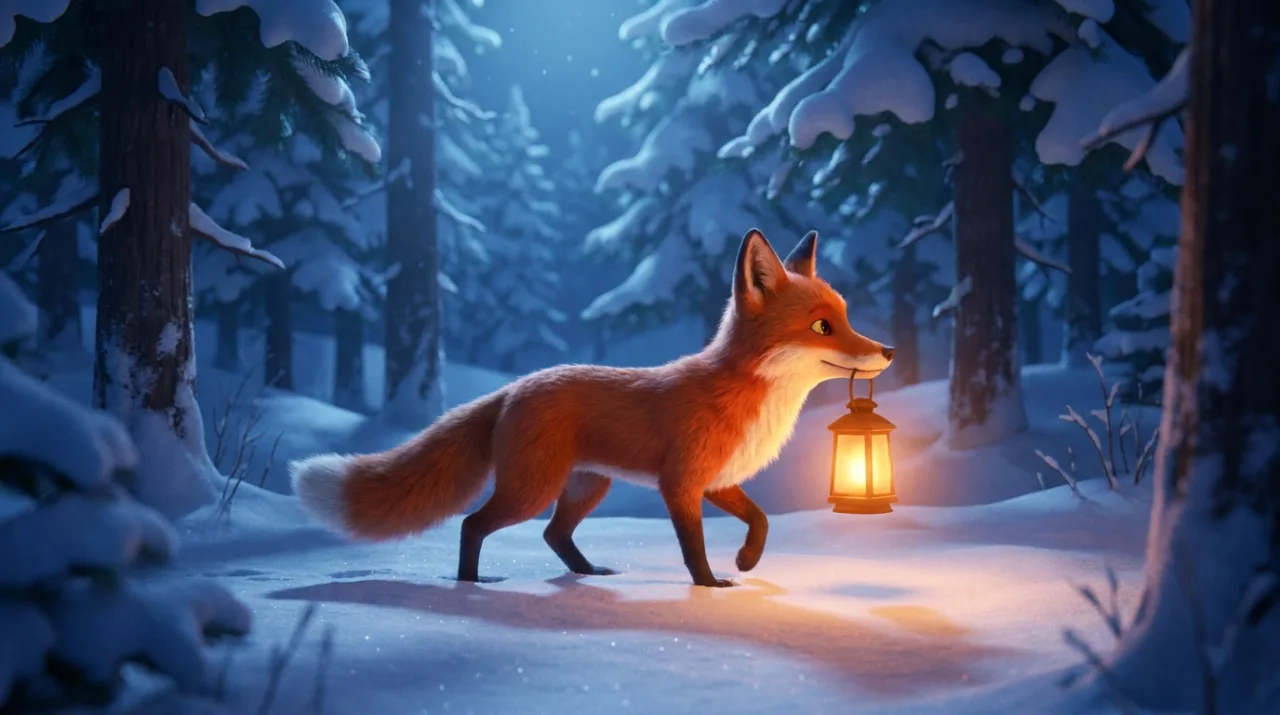
Example 2: a stylized animation still. The medium comes first, "Stylized 3D animation still:", so the model knows this is not a photo. The light is described by source and color: "blue moonlight, warm lantern glow on the snow". Two named light sources with contrasting colors give the frame a clear lighting plan, and "soft family-film lighting" sets the overall mood.
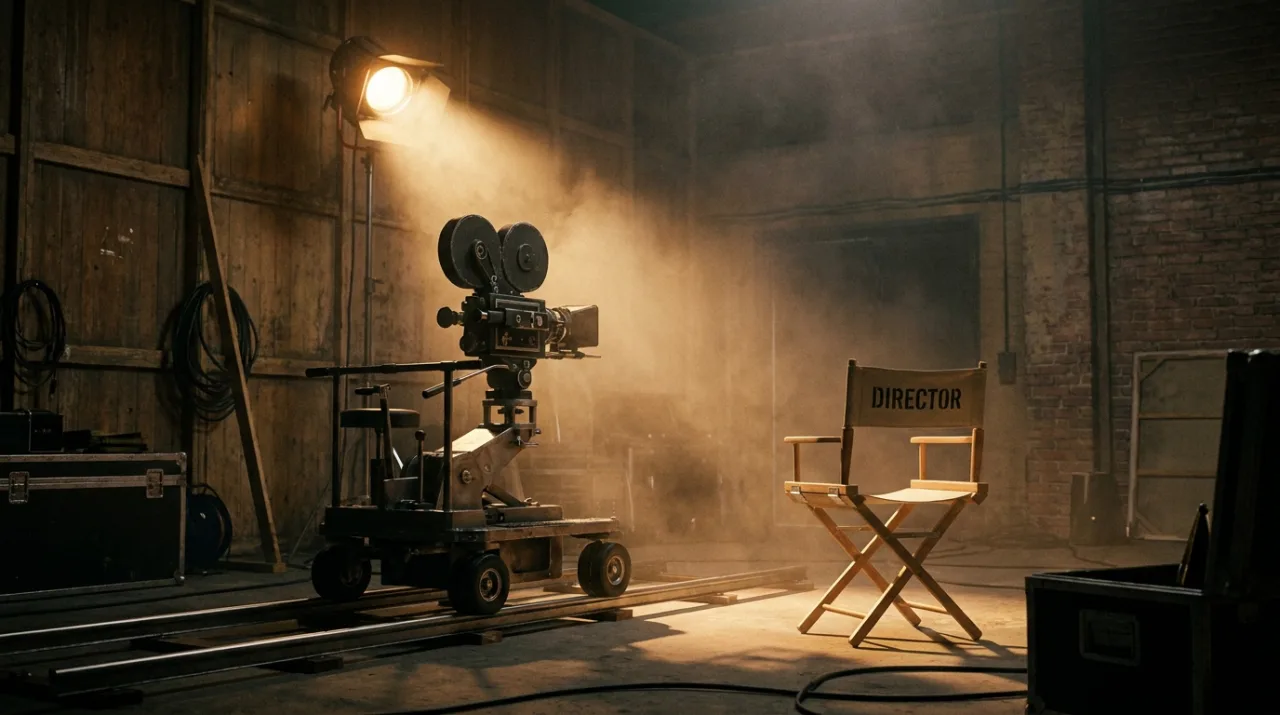
Example 3: a photographic set. "Cinematic photo of an empty soundstage:" sets both the medium and the location. The rest is a prop list a set dresser could work from: "a 35mm film camera on a dolly track, a single spotlight, an empty director's chair". Atmosphere and light get one phrase each ("haze in the air, warm tungsten light"), and "no people" states the exclusion directly.
Tips and common mistakes
- Name the medium first. "Stylized 3D animation still", "cinematic photo" and "matte painting" ask for very different images. Don't make the model guess.
- Give layouts a structure, then the words. For any card, table or poster, describe the grid, then write every label exactly. Keep labels short and proofread every word in the result.
- Describe light by source and color. "Warm tungsten light" or "blue moonlight" is a decision. "Nice lighting" is not.
- List the props. A set described as an inventory of objects is easier to follow than a set described by adjectives.
- Say what to leave out. If the frame must be empty, write "no people". A plain statement is the clearest instruction you can give.
- Give each reference a role. With up to 6 reference images, name what each one contributes, and use Camera Angle Control for the angle instead of typing a different one into the prompt.
How to do it in Cinemagiq
- Pick the model. On the Generation Studio's Image tab, choose Nano Banana Pro in the model picker.
- Set the frame. Choose the aspect ratio and resolution before you write, then set Camera Angle Control if the shot needs a specific angle or camera type.
- Borrow a starting point. Image to Prompt turns a still you like into an editable prompt, which is a quick way to match an existing look.
- Save what works. Store proven prompts in the project's Prompt Library as templates with
{{placeholders}}, for example a shot list card with {{scene}} and {{shots}}.
- Find and animate. Results land in the Asset Hub under All Generations, named after the model and the time. Add a still as the First Frame on the Video tab to animate it, and see our guide to image-to-video AI for the motion prompt.
Try these prompts in Cinemagiq
Run Nano Banana Pro and the other leading models in one AI-native workspace.