Nano Banana 2.1 is Google's image model and the default image model in Cinemagiq's Generation Studio. For film work it covers most of the stills a production needs: location concept art, storyboard frames, character sheets, posters, title cards, and the first frames you later animate. It reads plain, descriptive sentences, so the craft is less about magic words and more about deciding what the frame is before you type.
This guide gives you a prompt structure, three worked examples, and the settings that matter.
How Nano Banana 2.1 reads a prompt
The prompt is the only required input. Everything else is optional and set around it:
- Resolution: 1K, 2K or 4K. Explore at 1K, then move up for the frame you keep.
- Aspect ratio: chosen in the Image tab. Pick it before you write, because a 16:9 frame and a 9:16 frame want different compositions.
- Reference images: up to 10. Use them for a character's face and costume, a location, or a look, and say in the prompt what each one is for.
- Camera Angle Control: a setting for the Nano Banana family. The presets are Front, Rear, Left Side, Right Side, Low Angle, High Angle and Custom, plus three camera types: Top-Down, Wide-Angle and Close-Up. Your choice is added to the prompt the model receives. It steers the framing, it does not guarantee it.
- Text in the image: for a title card or poster, write the exact words in quotes and keep them short.
Lead with what kind of image this is ("concept art", "film still", "character sheet"), so every detail after it is read in that context. Then describe the content. Put framing last, or leave it to Camera Angle Control.
A prompt structure that works
[Image type or medium]: [subject with two or three concrete details] [doing what] in [place], [light and time of day], [mood or color], [shot size or framing].
Fill each slot once. Leave a slot out rather than pad it. If you set an angle with Camera Angle Control, keep the angle out of the text so the two never disagree.
What each example shows
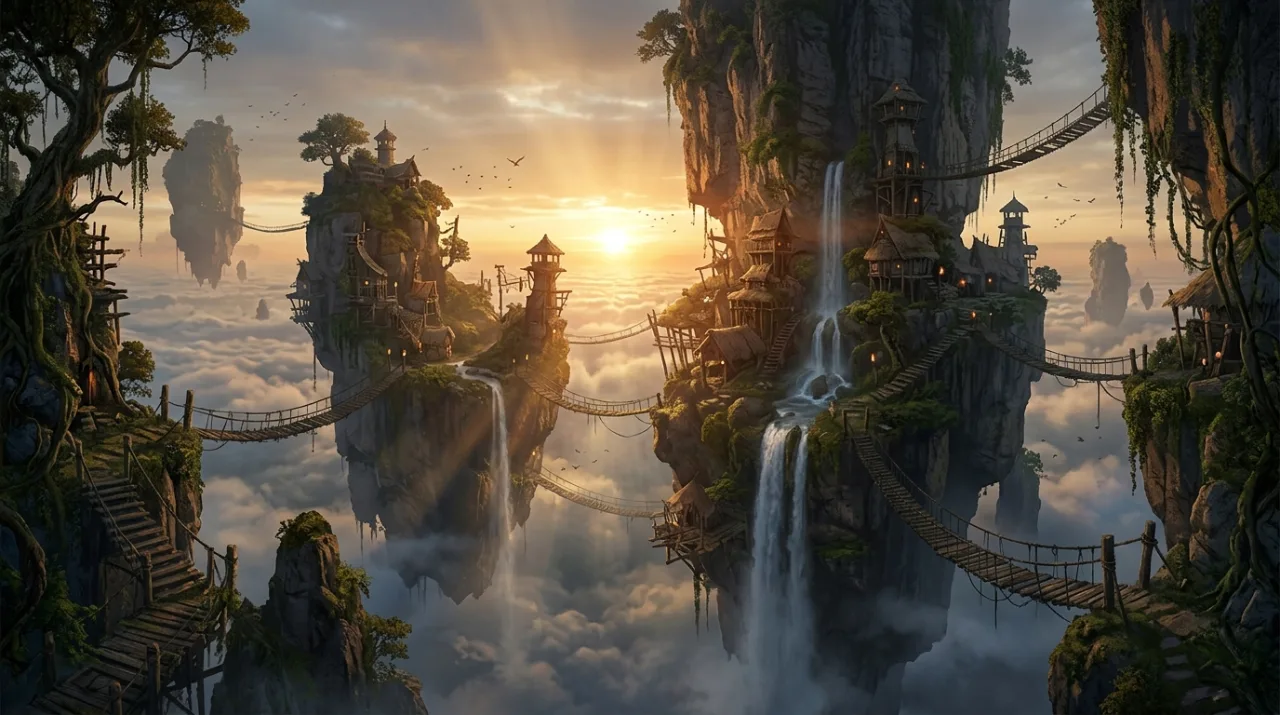
Example 1: location concept art. The prompt opens with the deliverable, "Location concept art, matte painting:", then lists the set pieces a production designer would ask for: "wooden rope bridges between the rocks, waterfalls falling into the mist". Light gets one precise phrase, "golden rim light", and the closing words, "epic wide establishing shot", set the framing. Every slot of the template is used once, and nothing is padded.
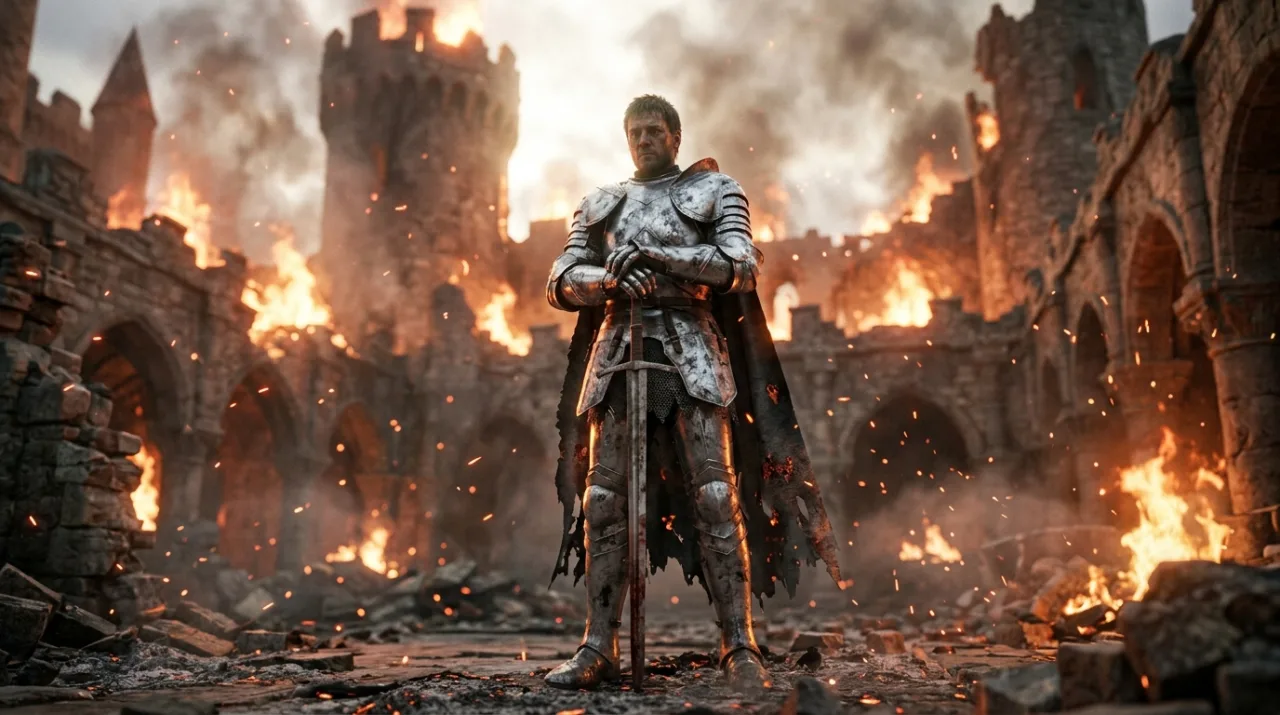
Example 2: Low Angle. This prompt describes a character, a place and a light source ("dramatic backlight") and labels itself a "cinematic film still", but it says nothing about where the camera is. That job goes to Camera Angle Control, set here to the Low Angle preset. Keeping the angle out of the text means the setting has nothing to argue with.
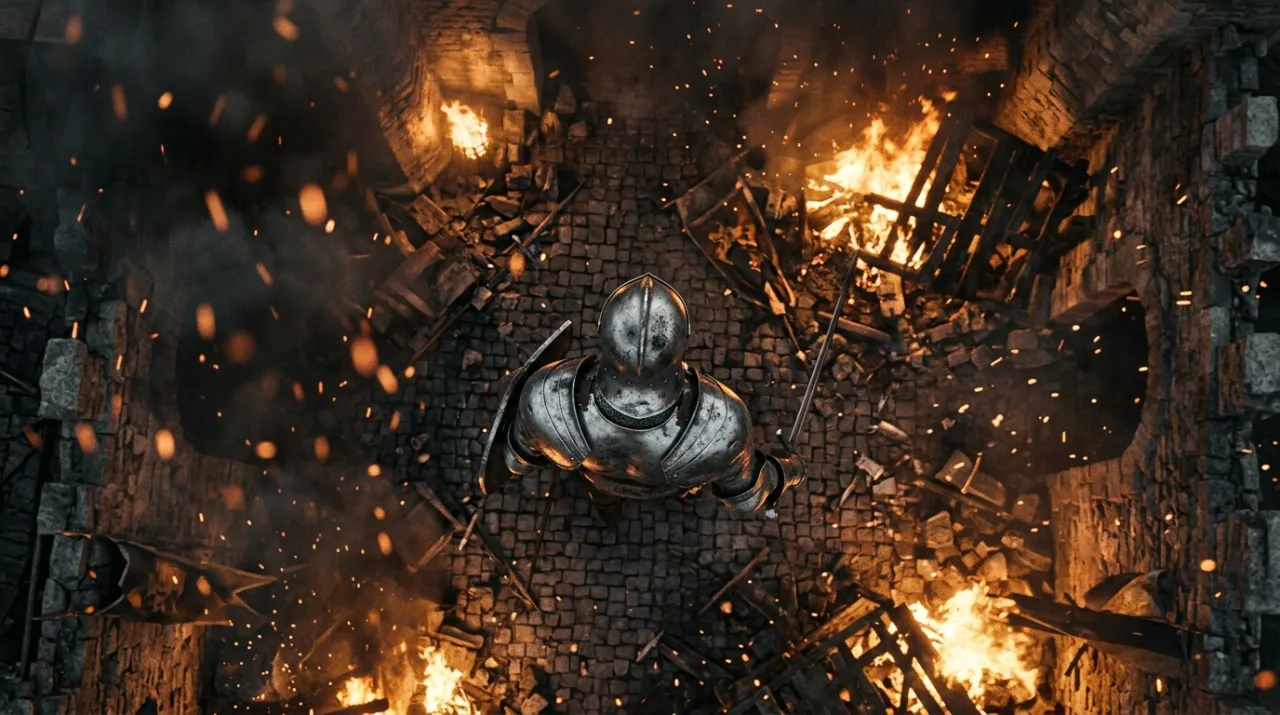
Example 3: Top-Down. The exact same prompt, run again with Camera Angle Control set to the Top-Down camera type instead. Running one prompt with two camera settings is a quick way to get coverage of a moment: the description stays fixed and only the camera changes. Use it to explore setups for a scene before you rewrite a single word.
Tips and common mistakes
- Lead with the image type. "Character sheet", "matte painting" or "film still" up front sets the frame for every detail that follows.
- Say the light precisely. "Golden rim light" or "dramatic backlight" beats "beautiful lighting". Avoid contradictions such as "bright, moody, noir daylight".
- Don't fight Camera Angle Control. If the setting says Low Angle and the prompt says "bird's-eye view", you have given two directions. Pick one, and check the result, because the setting steers rather than guarantees.
- Give every reference a job. With up to 10 images available, it is tempting to add them all. Add the ones that matter and name their role, for example "the knight's armor from the reference image".
- Match resolution to the stage. 1K is enough to judge a composition. Save 2K or 4K for the approved frame, the poster, or the still you plan to animate.
- Quote on-image text. Write titles exactly, in quotes, and keep them to a few words. Check the spelling before the frame goes anywhere.
How to do it in Cinemagiq
- Pick the model. Open the Generation Studio's Image tab and choose Nano Banana 2.1 in the model picker. It is the default image model.
- Set the frame. Choose the aspect ratio and resolution before you write the prompt.
- Set the angle. Use Camera Angle Control for a preset or a camera type, or leave it off when the prompt should decide.
- Start from what works. Image to Prompt turns a still you like into an editable prompt. Save the prompts that land in the project's Prompt Library as templates, with
{{placeholders}} for the subject and setting.
- Move to motion. Every result lands in the Asset Hub under All Generations, named after the model and the time. To animate one, add it as the First Frame on the Video tab. Our guide to image-to-video AI covers how to write the motion prompt.
Try these prompts in Cinemagiq
Run Nano Banana 2.1 and the other leading models in one AI-native workspace.