imageby xAIAvailable in Cinemagiq
Grok Imagine 2.0
xAI's Grok Imagine 2.0 image model, at 1K or 2K and two quality levels
An image costs from about $0.08
xAI's Grok Imagine 2.0 image model, at 1K or 2K and two quality levels
An image costs from about $0.08
Grok Imagine 2.0 is an image generation model from xAI. It makes stills; its video counterpart in Cinemagiq is Grok Imagine Video 1.5, also from xAI. Grok Imagine 2.0 sits on the Generation Studio's Image tab, takes a prompt plus up to 3 reference images, and returns up to four images per run, which suits quick rounds of variations when you are still looking for a style.
It renders at 1K or 2K, and a 4K request delivers 2K. Quality comes in two levels, low and medium, with medium as the default. It renders seven aspect ratios: 1:1, 4:3, 3:4, 16:9, 9:16, 3:2 and 2:3, and any other ratio is snapped to the nearest of those. Camera Angle Control is not available, so describe the framing in the prompt.
Use Grok Imagine 2.0 to test looks for a project: anime key visuals, claymation, retro VHS frames and storybook illustration. Run a few variations at low quality, then rerun the keeper at medium. The still can then become the First Frame of a clip on the Video tab, in Grok Imagine Video 1.5 or another video model. Every result lands in the Asset Hub under All Generations.
Made in Cinemagiq with Grok Imagine 2.0. The exact prompt is under each one.
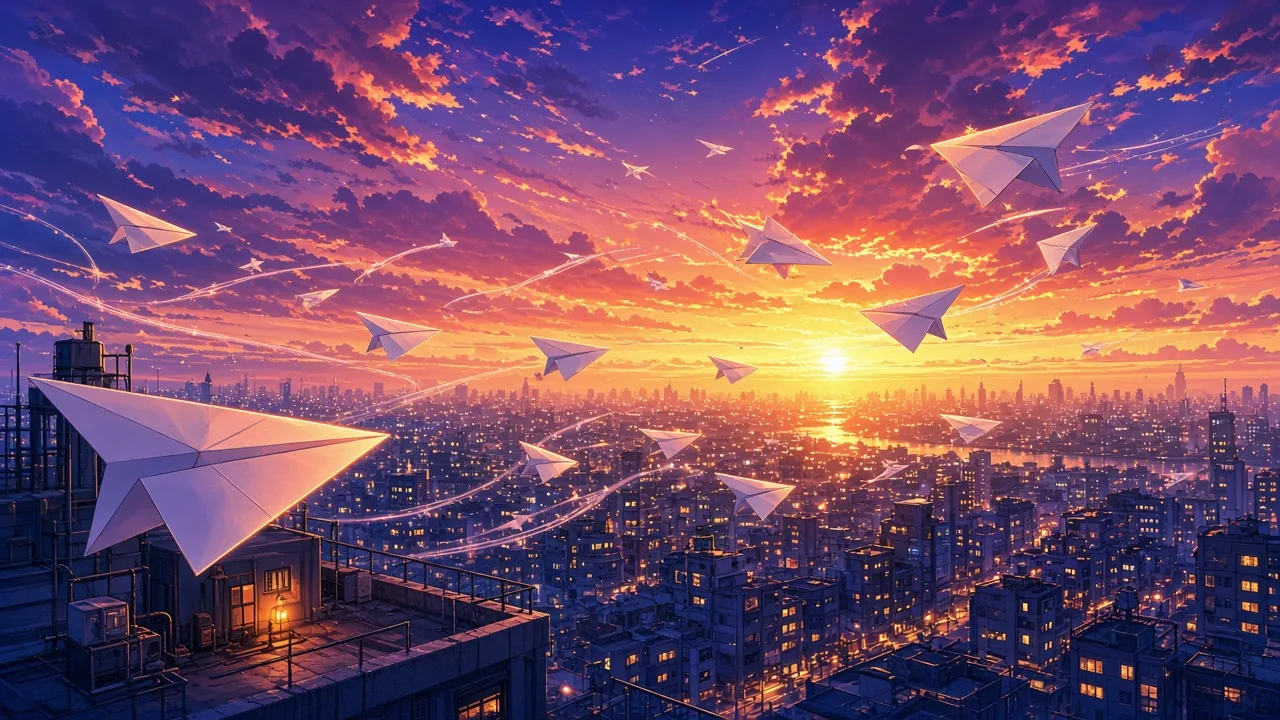
PromptAnime key visual, no characters: a flock of paper airplanes soaring over a rooftop city at dusk, a glowing sunset behind dramatic clouds, vibrant colors.
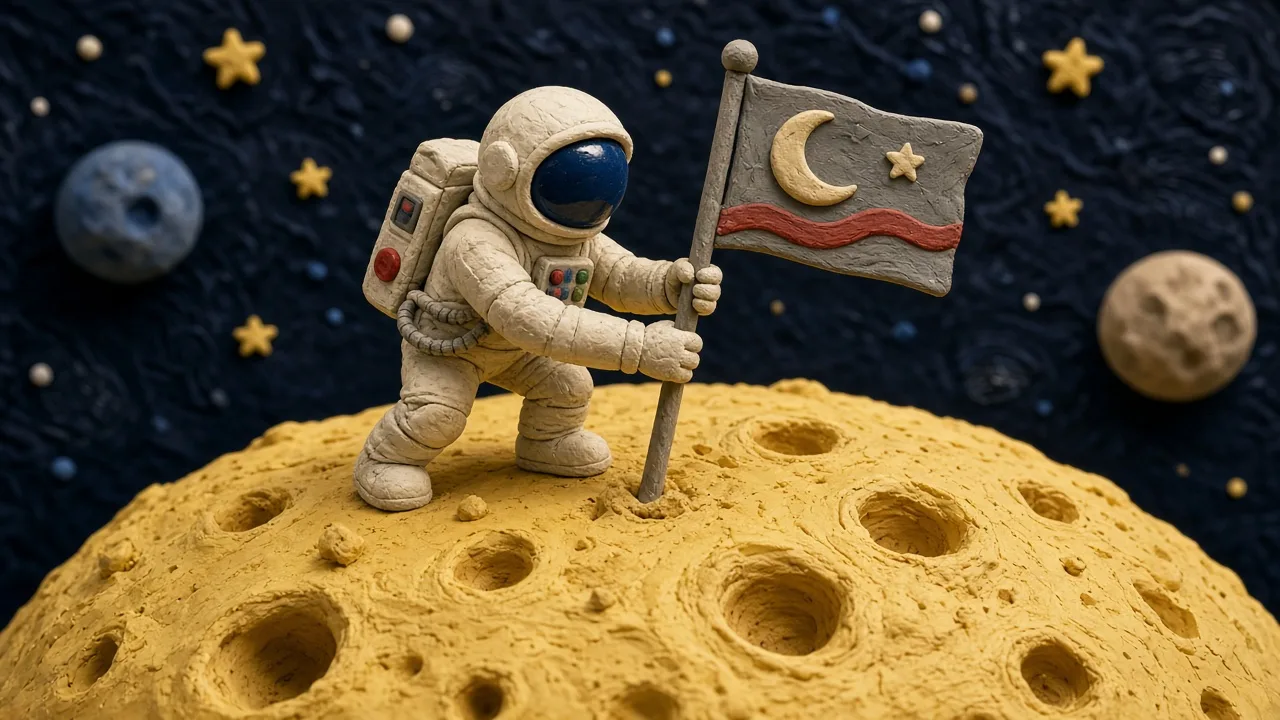
PromptClaymation style still: a tiny clay astronaut planting a flag on a moon made of cheese, handmade textures with visible fingerprints in the clay.
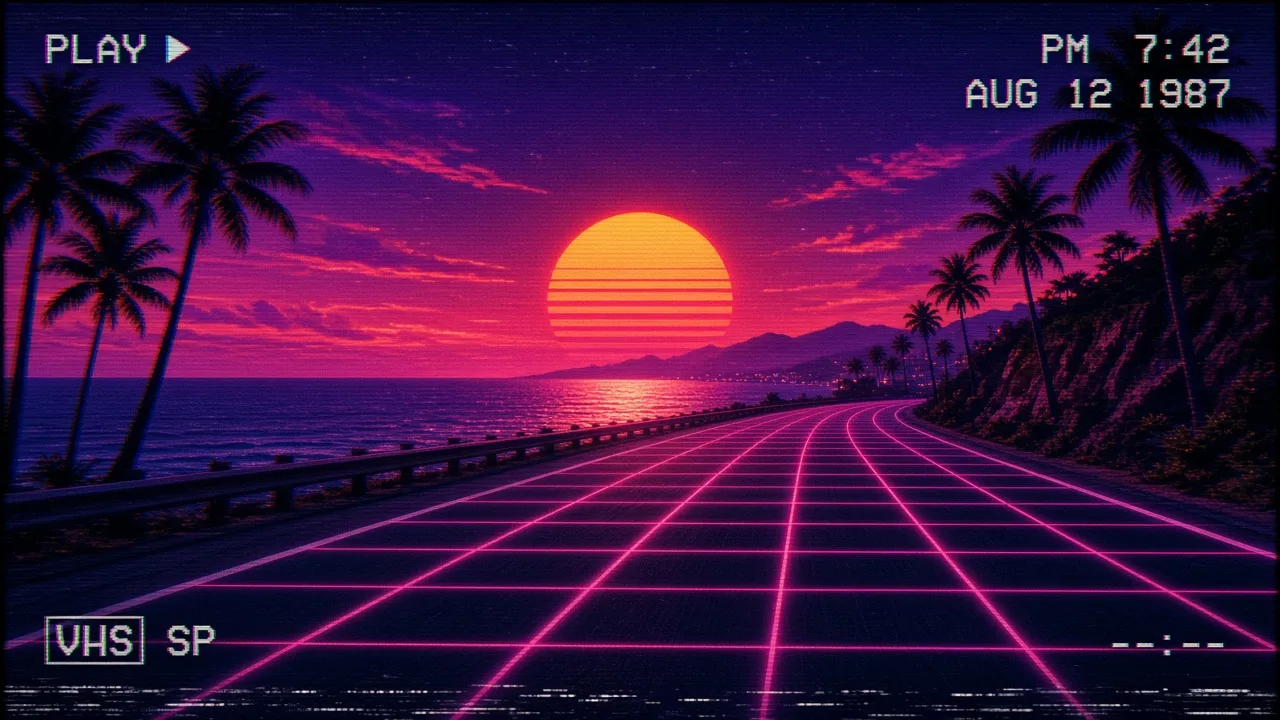
PromptRetro 1980s VHS style frame: a synthwave sunset over a palm-lined coastal highway with no cars, a neon grid fading toward the horizon, scan lines.
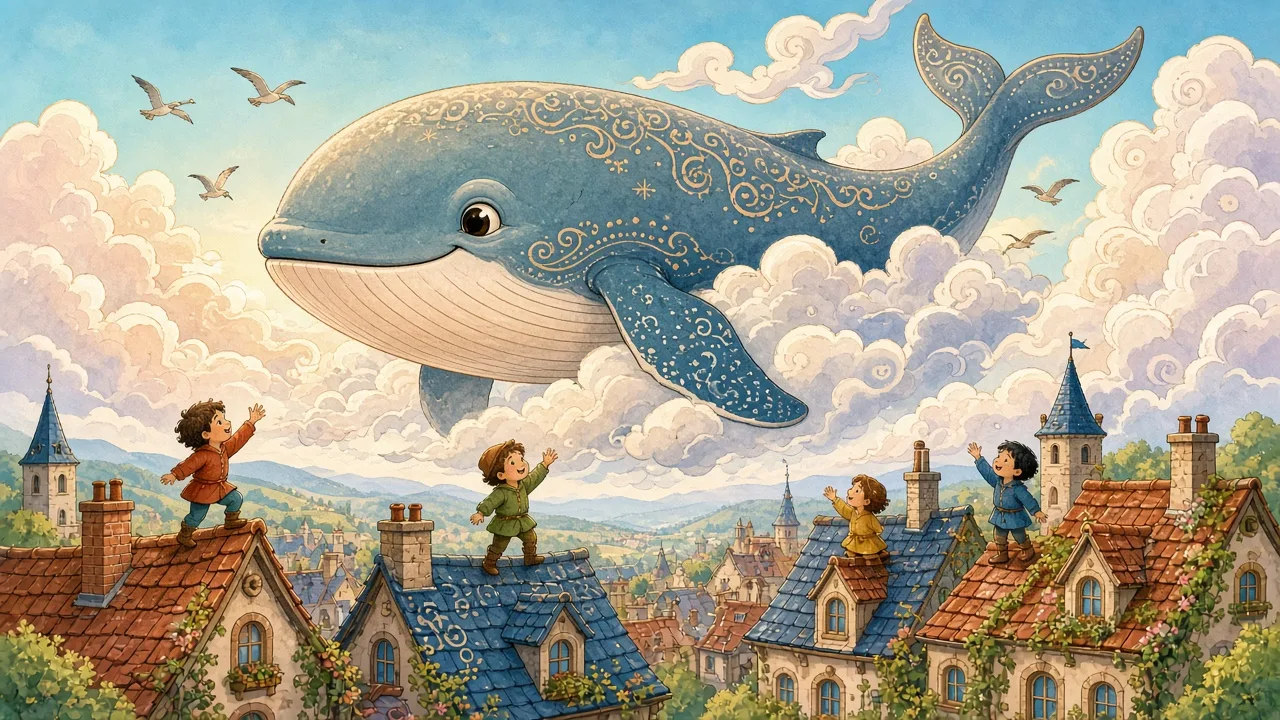
PromptWhimsical storybook illustration: a giant friendly whale floating through the clouds above a small village, children waving from the rooftops.
Straight from the model list Cinemagiq runs today.
| Variant | Resolution | Reference images | Camera Angle Control |
|---|---|---|---|
| Grok Imagine 2.0 | 1K, 2K | Up to 3 | No |
Grok Imagine 2.0 is xAI's image model and makes stills. For video, Cinemagiq runs Grok Imagine Video 1.5, which starts from a prompt, a first frame or up to 7 reference images. You can make a still with one and animate it with the other.
Two: low and medium, with medium as the default. Use low while you explore ideas and medium for the frames you keep. Higher levels such as high are not available on this model; for those, try GPT Image 2.5, which goes up to max.
Seven: 1:1, 4:3, 3:4, 16:9, 9:16, 3:2 and 2:3. If you ask for another ratio, such as 21:9, it is snapped to the nearest of those. For 21:9 frames, use FLUX.2, Qwen Image 3 or GPT Image 2.5 instead.
Up to 3. Use them for a character, a costume or a location you want carried into the frame, and say in the prompt what each one is for. For more references in a single frame, Nano Banana 2.1 takes up to 10.
Generate with Grok Imagine 2.0 and the other models Cinemagiq runs in one AI-native workspace, and pick the right one per shot.